Run engaging learning programs from one connected platform
Organize learners, deliver structured learning, support instructors and track progress using the Sublime LMS capabilities that fit your academy programs — from the first intake through to the certificate.
- Every intake runs as its own batch
- Video, reading and live sessions in one place
- Verifiable certificates on completion
The teaching is yours. The running of it is ours
Academies rarely struggle for content. What takes the time is operating the program — every intake, every week, every learner. These are the jobs Sublime LMS takes on.
-
The need
Running the same program for intake after intake
How Sublime LMS helpsCurriculum lives in the program and is built once. Each intake is a batch with its own dates, schedule, seats and roster — and the next one can be duplicated from the last.
See how -
The need
Keeping a whole batch moving at one pace
How Sublime LMS helpsProgram modules become the batch's weeks and unlock on schedule, alongside live sessions, announcements and lessons learners resume where they left off.
See how -
The need
Knowing whether people actually learned it
How Sublime LMS helpsQuizzes with pass marks and attempt limits, and assignments handed in as text, a file or a link — scored and returned with written feedback.
See how -
The need
Seeing who needs help while there is still time
How Sublime LMS helpsOne roster per batch shows each learner's progress, quiz results, attendance and status, and flags who is at risk with the reason.
See how -
The need
Giving learners something to show for it
How Sublime LMS helpsWhere a course grants one, completion issues a certificate learners can download as a PDF and share through a public verification link.
See how
From program build to certificate
How an academy program runs in Sublime LMS, using the workflows the product has today.
- 01 · Build
Build the program once
Courses are modules and lessons — readings, videos, quizzes, assignments, resources and discussions.
- 02 · Schedule
Open the next batch
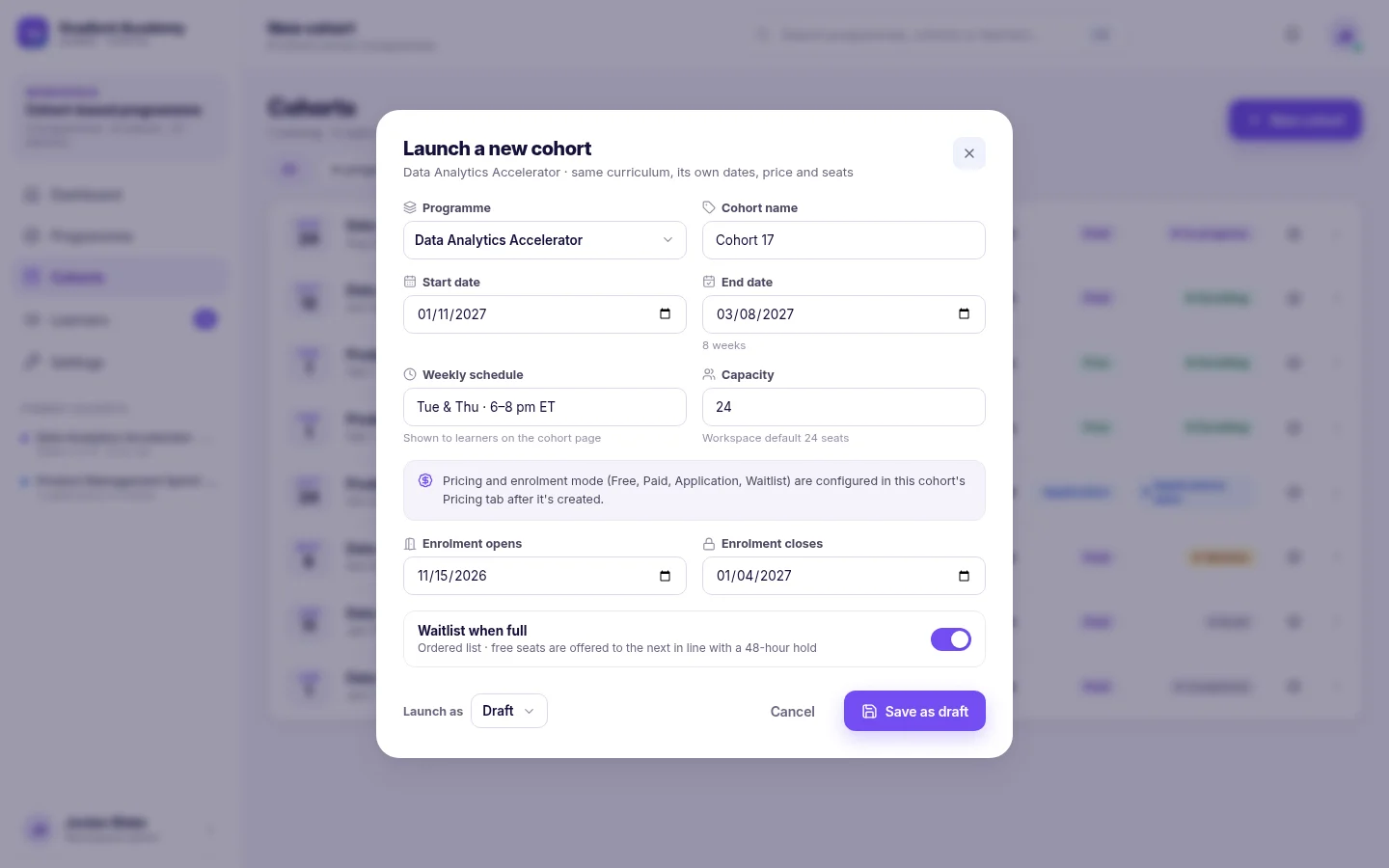
Each intake is a cohort with its own start and end dates, weekly schedule, capacity and enrollment window.
- 03 · Enroll
Fill the roster
Learners enroll from the cohort page — free, paid, by application or by waitlist — or an admin adds them by email.
- 04 · Deliver
Run the weeks
Each week unlocks for the whole batch, with live sessions, announcements and lessons that resume where learners stopped.
- 05 · Assess
Check the learning
Quizzes mark themselves against a pass mark; assignments are scored and returned with feedback.
- 06 · Recognize
Complete and certify
Completion is tracked per learner, and where the course grants one a verifiable certificate is issued.
What an academy looks like in Sublime LMS
Real screens from fictional demo workspaces — no customer or learner data. Pick a capability to see it.
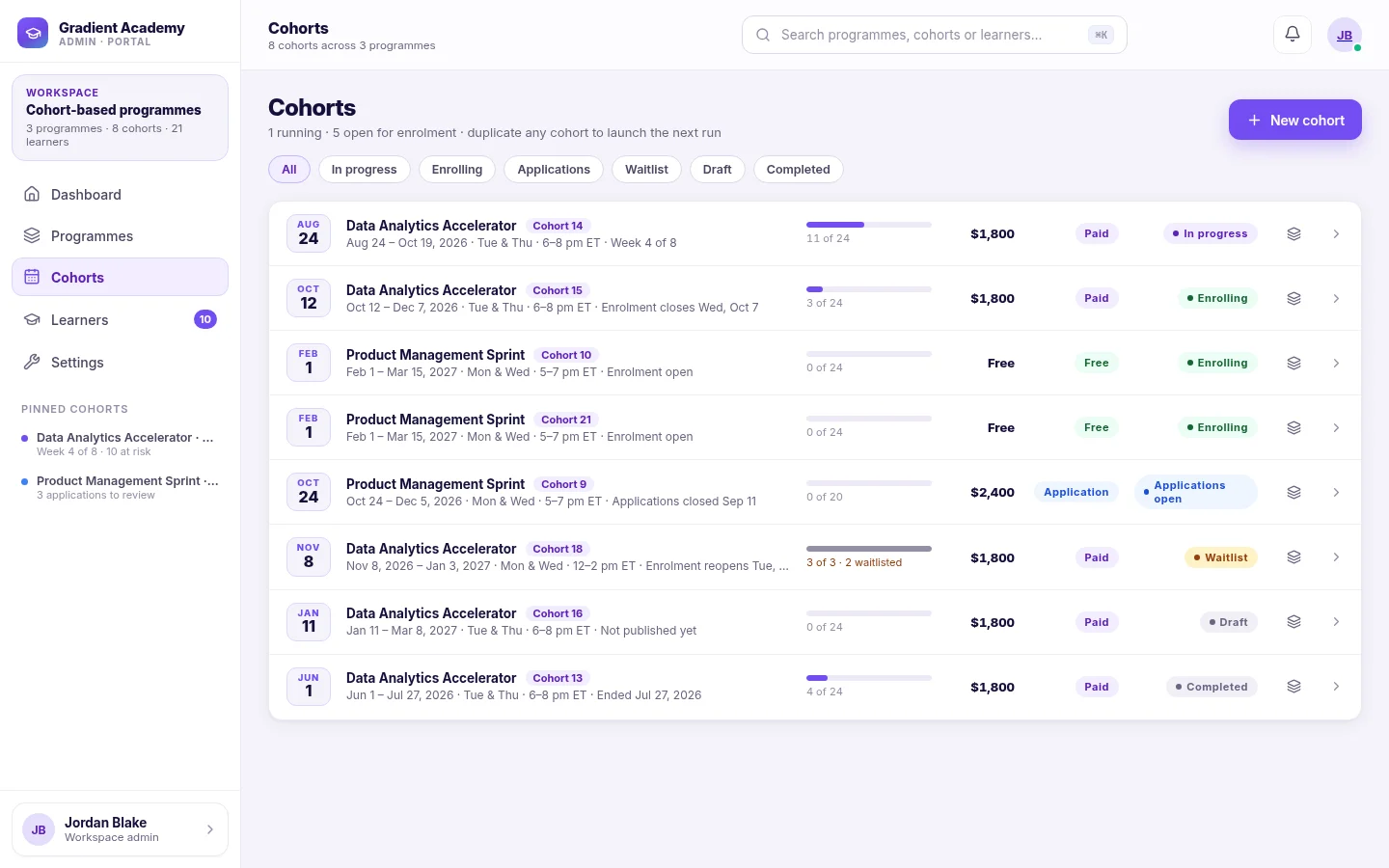
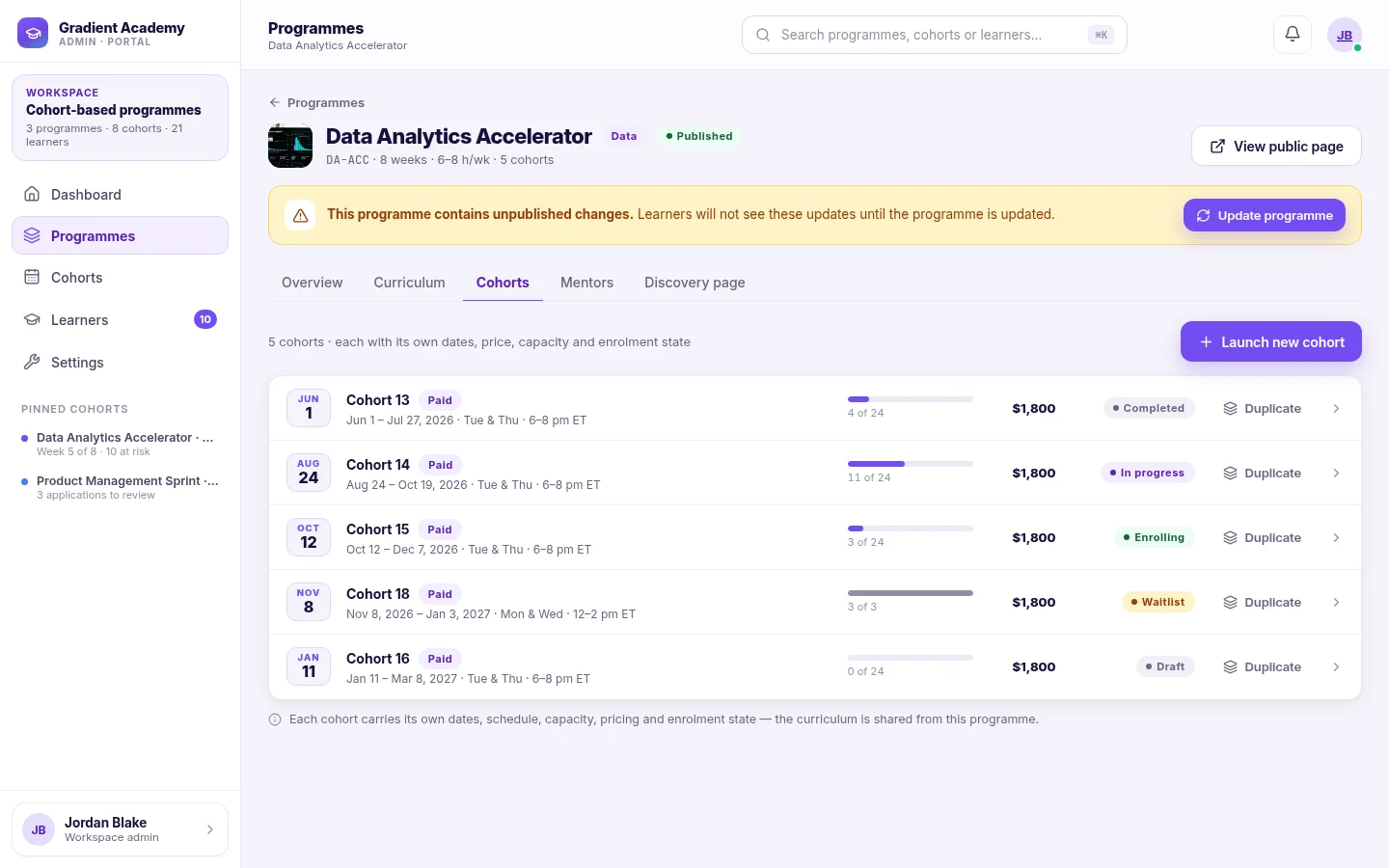
Batches & cohorts. Each intake runs as a cohort of the program, with its own dates, schedule, seats, price, enrollment mode and roster — listed together across every program you run.
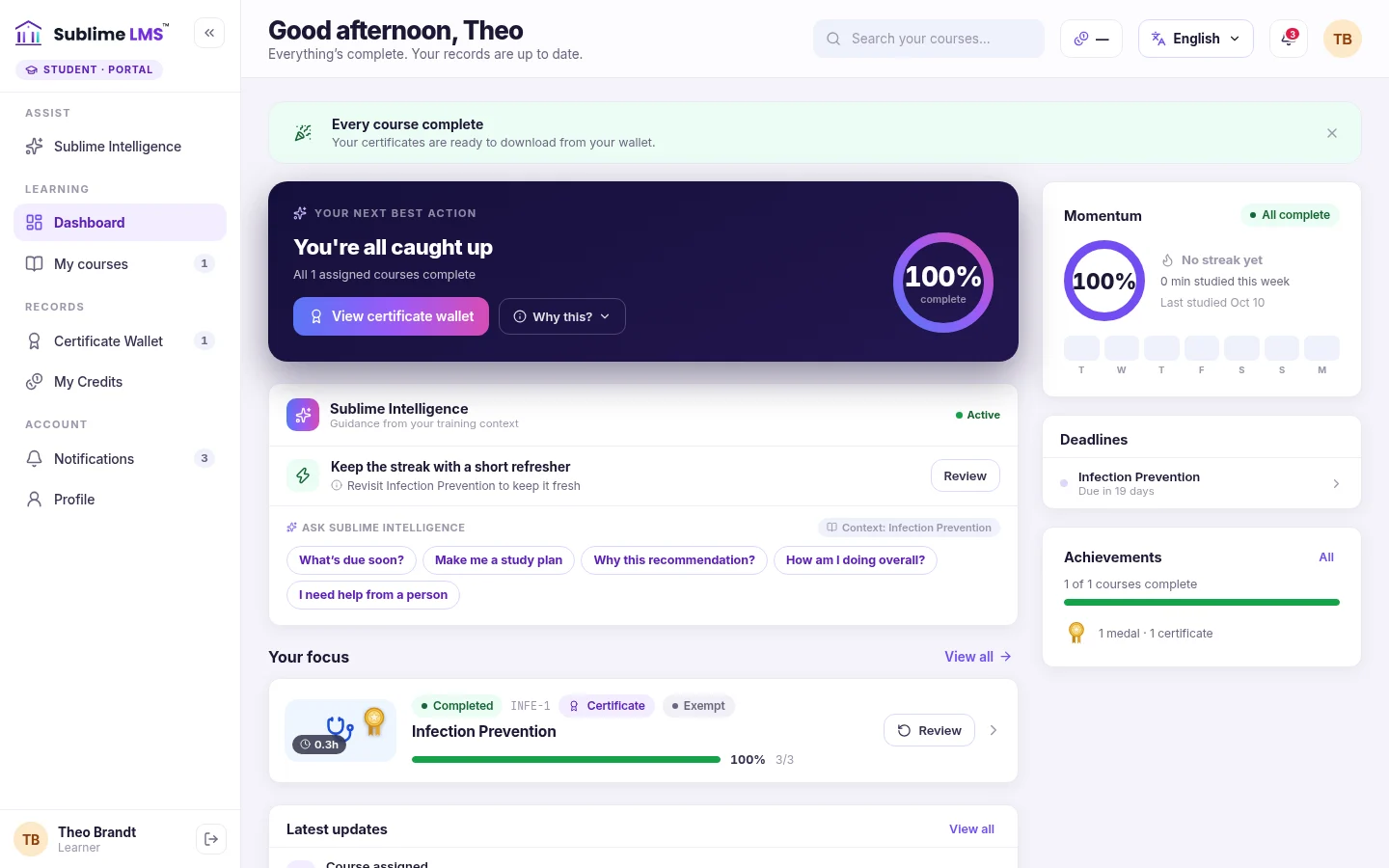
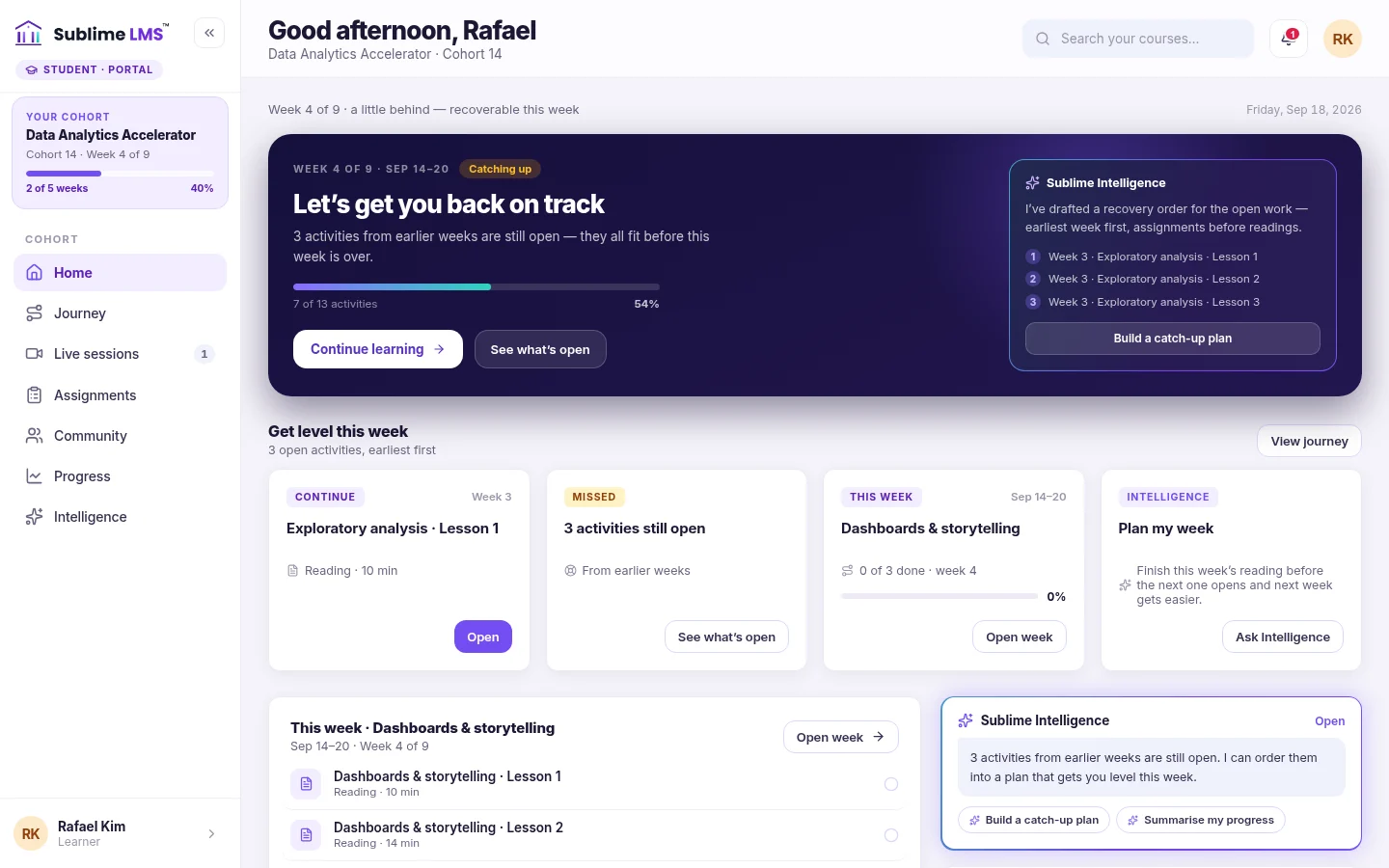
Learner experience. The learner dashboard opens on what to do next — the next lesson, upcoming deadlines, overall progress and the course in focus — so nobody has to work out where they left off.
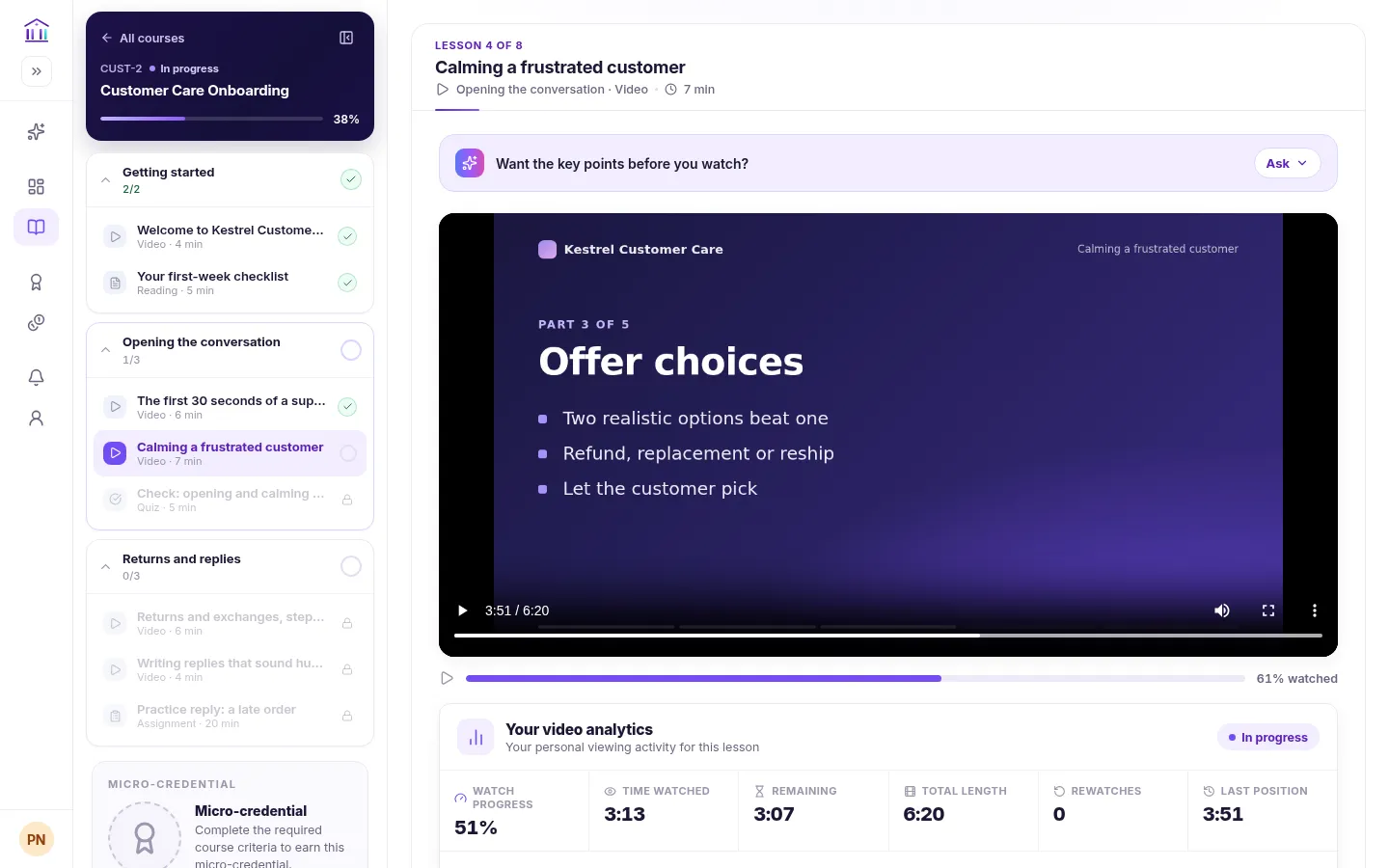
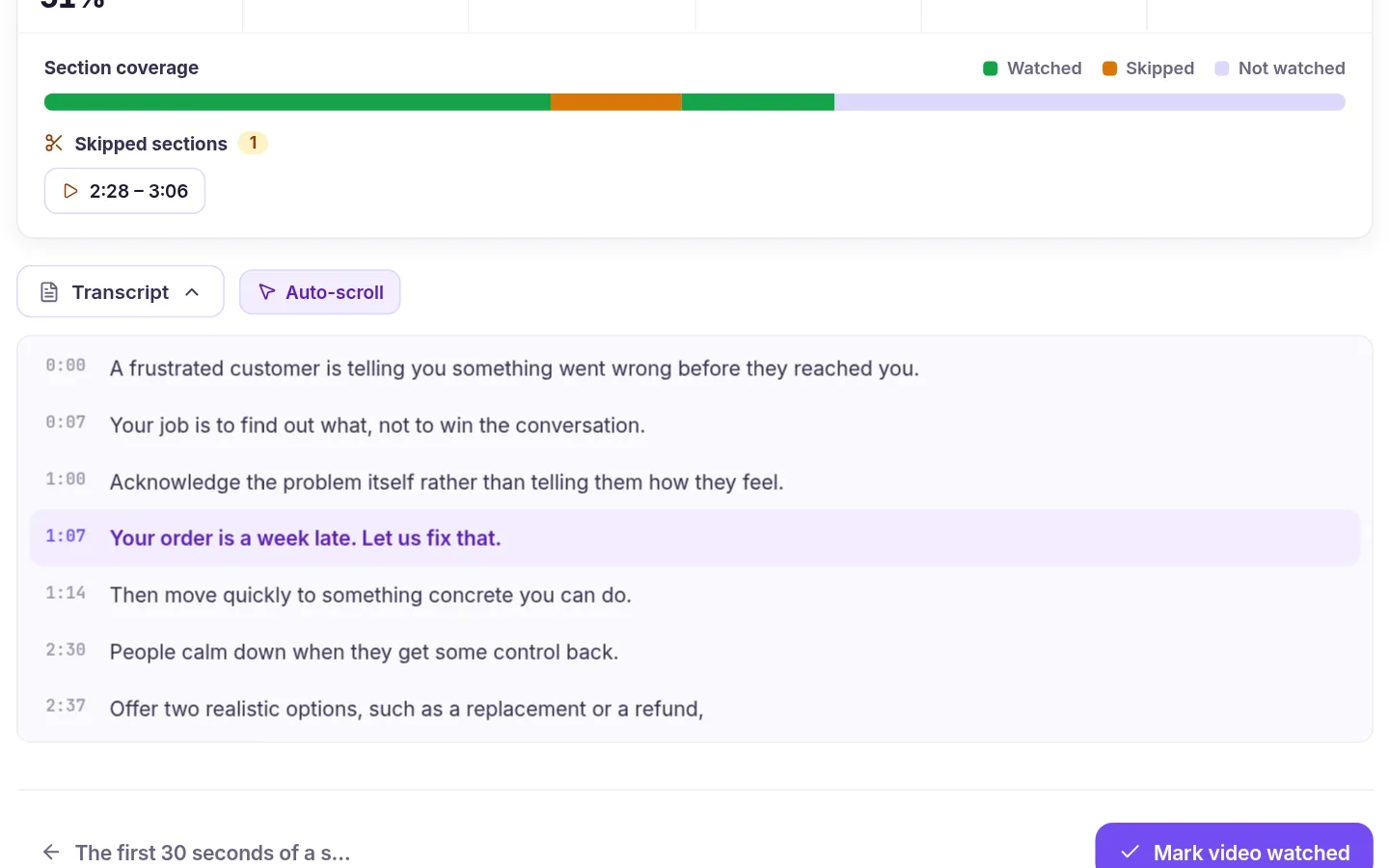
Training videos. Video lessons reopen at the exact second the learner left off, with captions and an interactive transcript beside them, and later lessons stay locked until the current one is done.
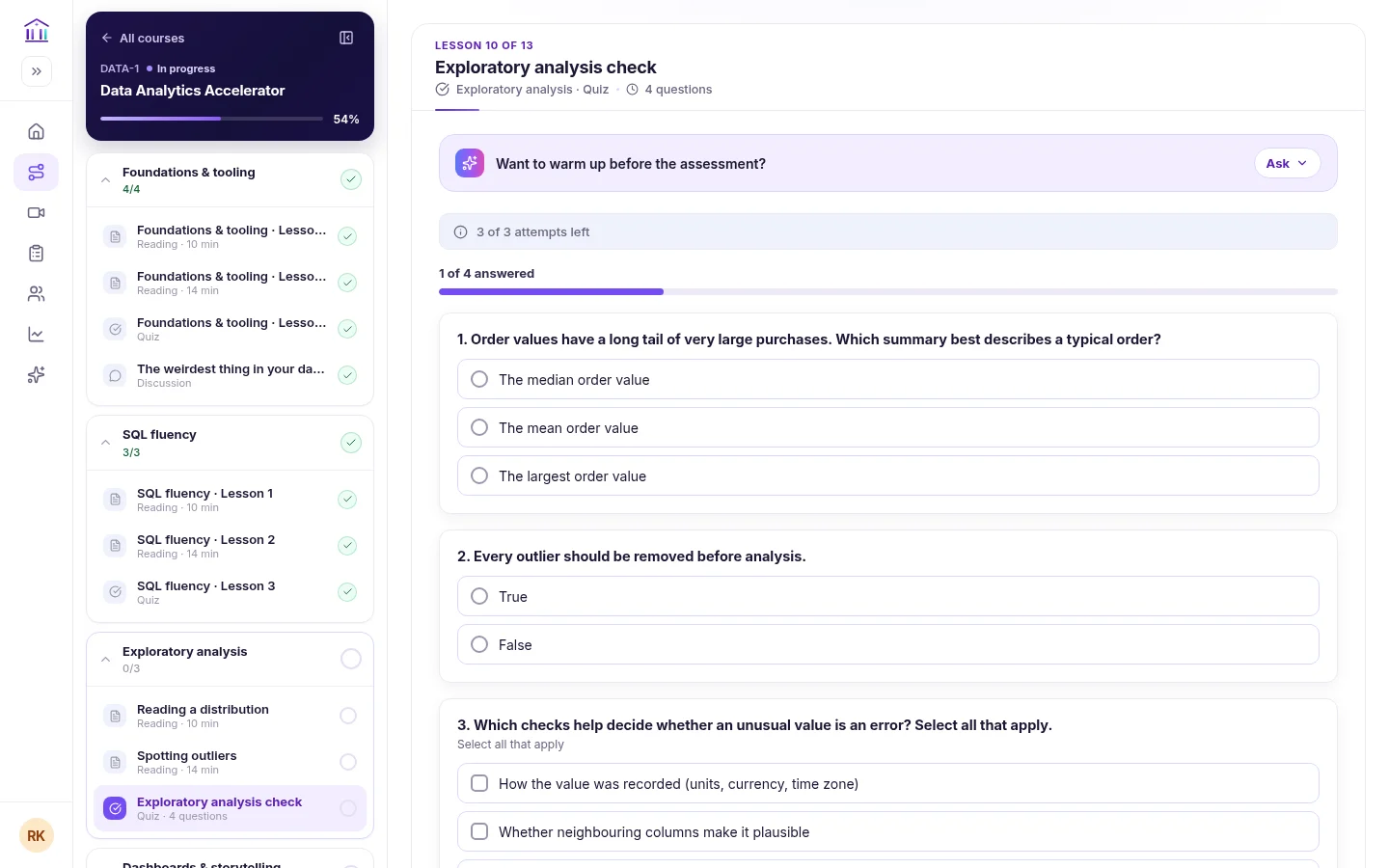
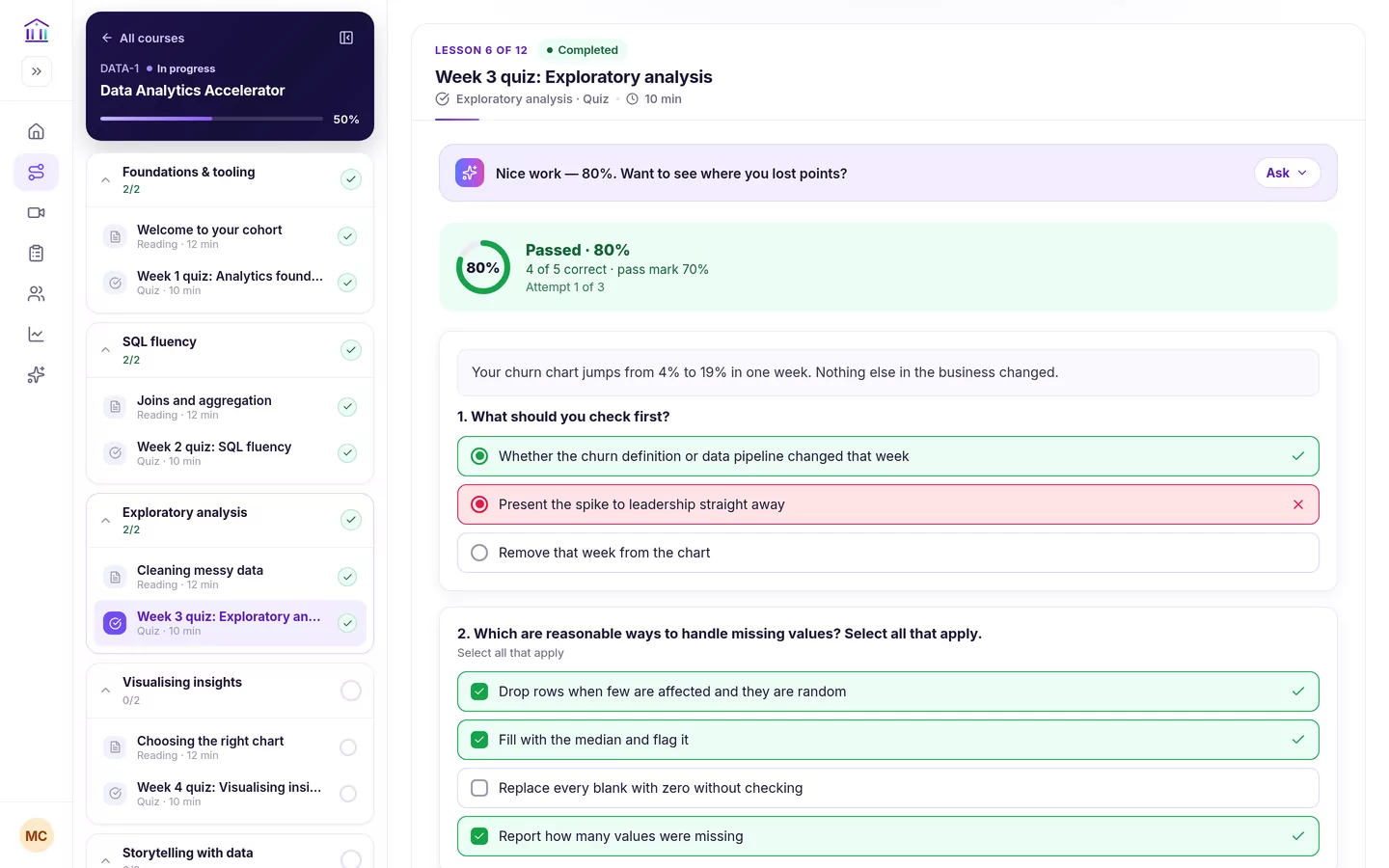
Quizzes. Quizzes show attempts remaining and questions answered as the learner goes, and mark themselves against the pass mark you set.
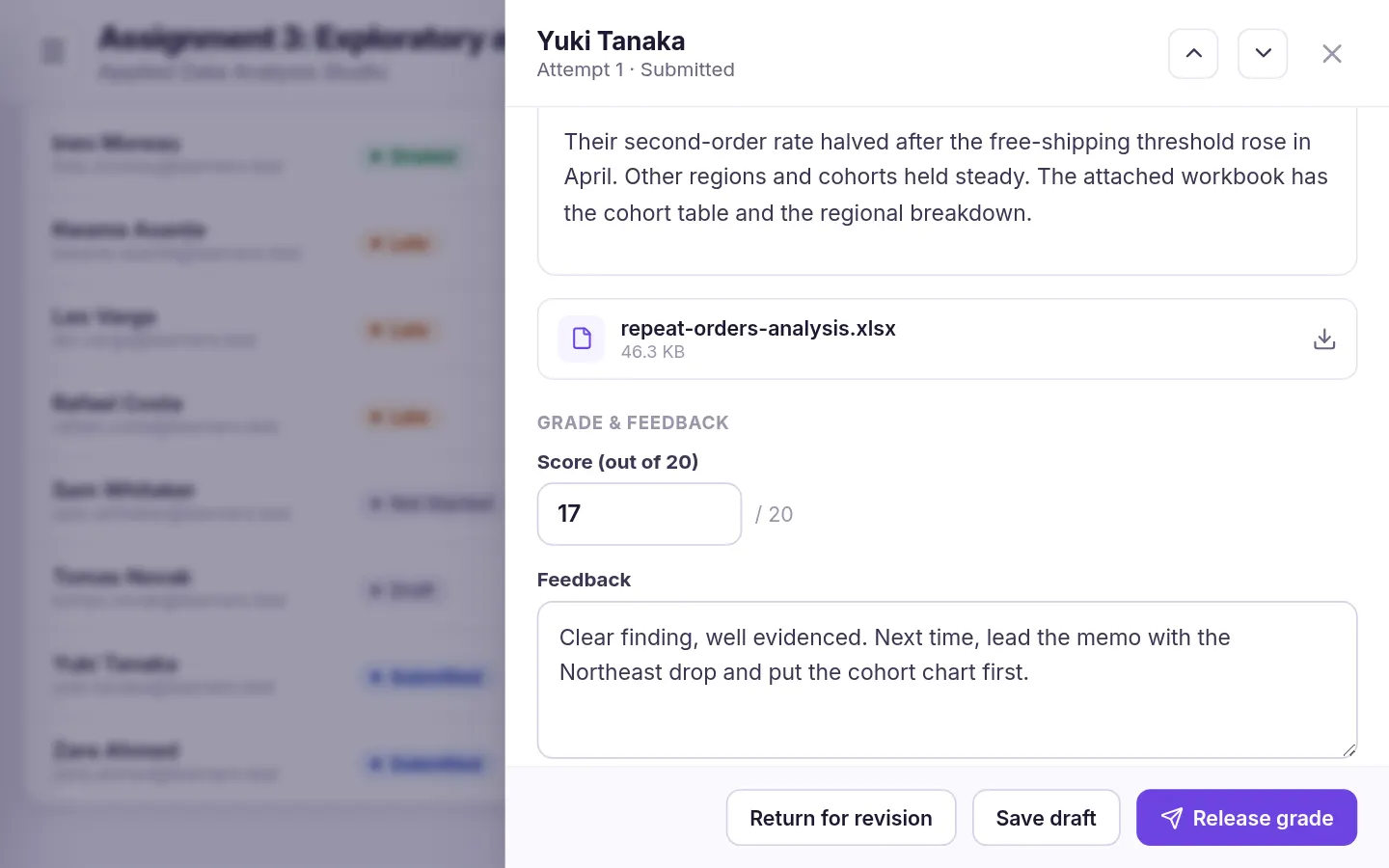
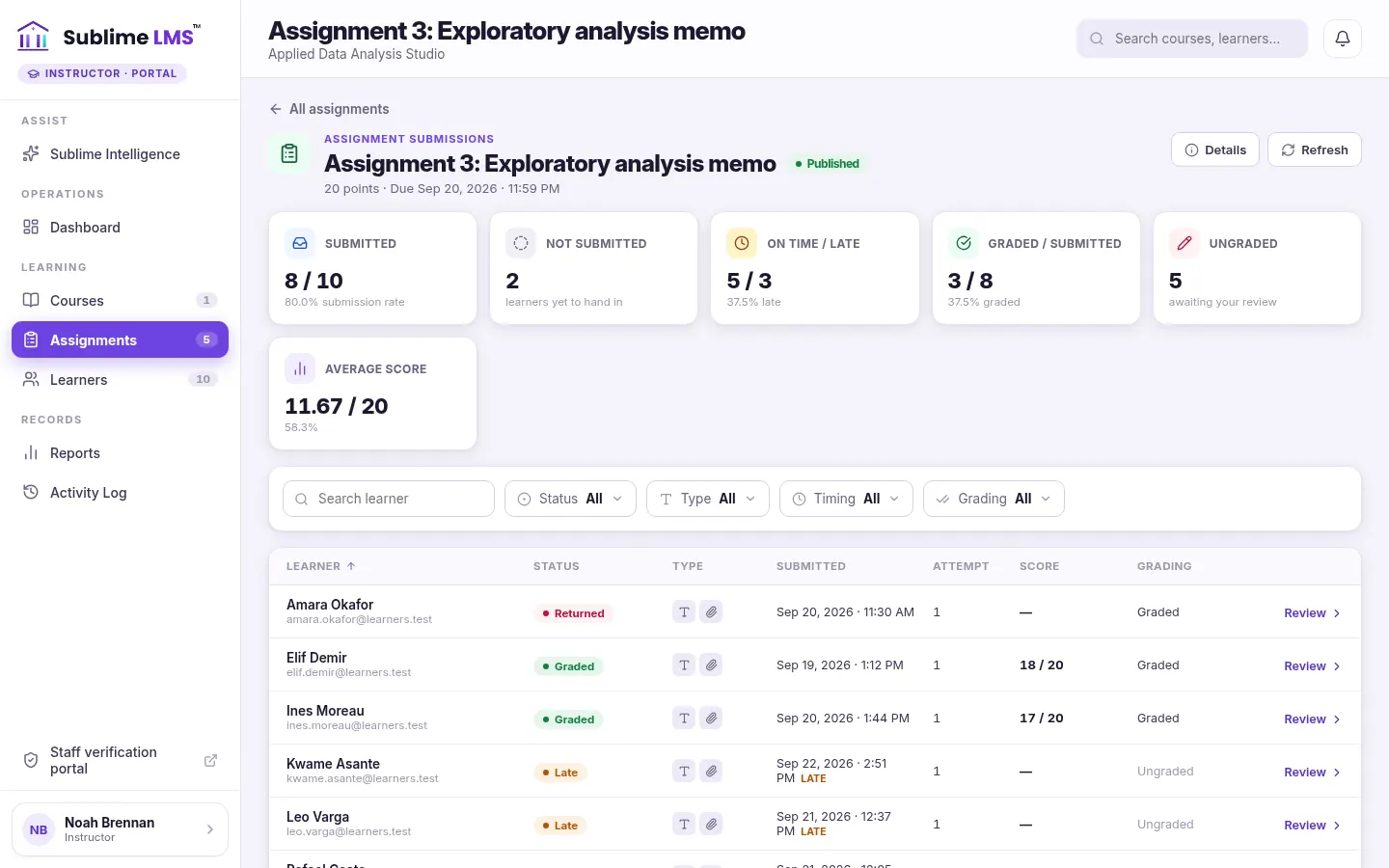
Assignments & feedback. Instructors review each submission beside a score field and a feedback box, then release the grade or return the work for another attempt.
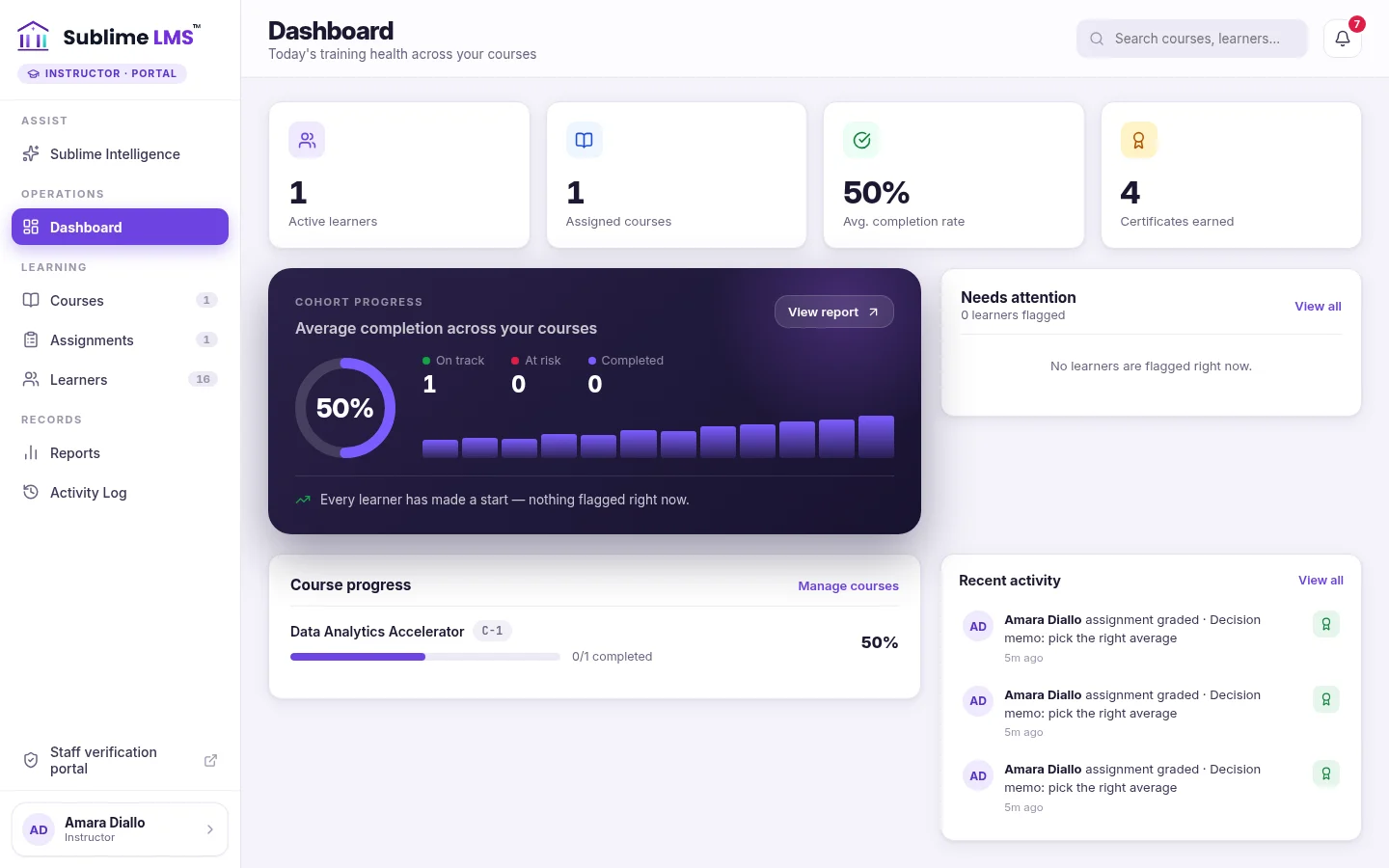
Instructor workspace. Instructors get their own workspace scoped to the courses they are assigned — active learners, average completion, what needs attention and recent grading activity. Available on Sublime Live.
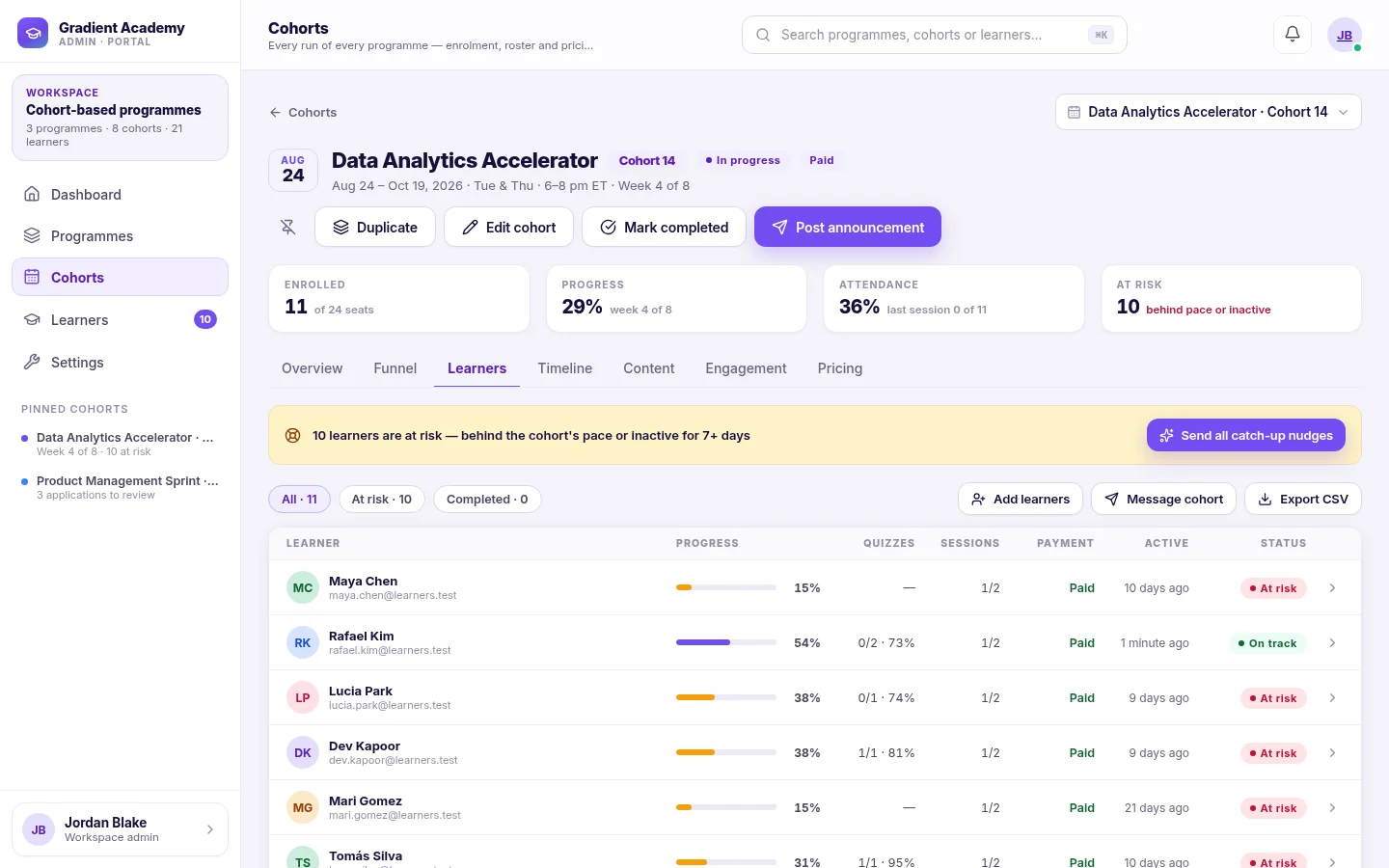
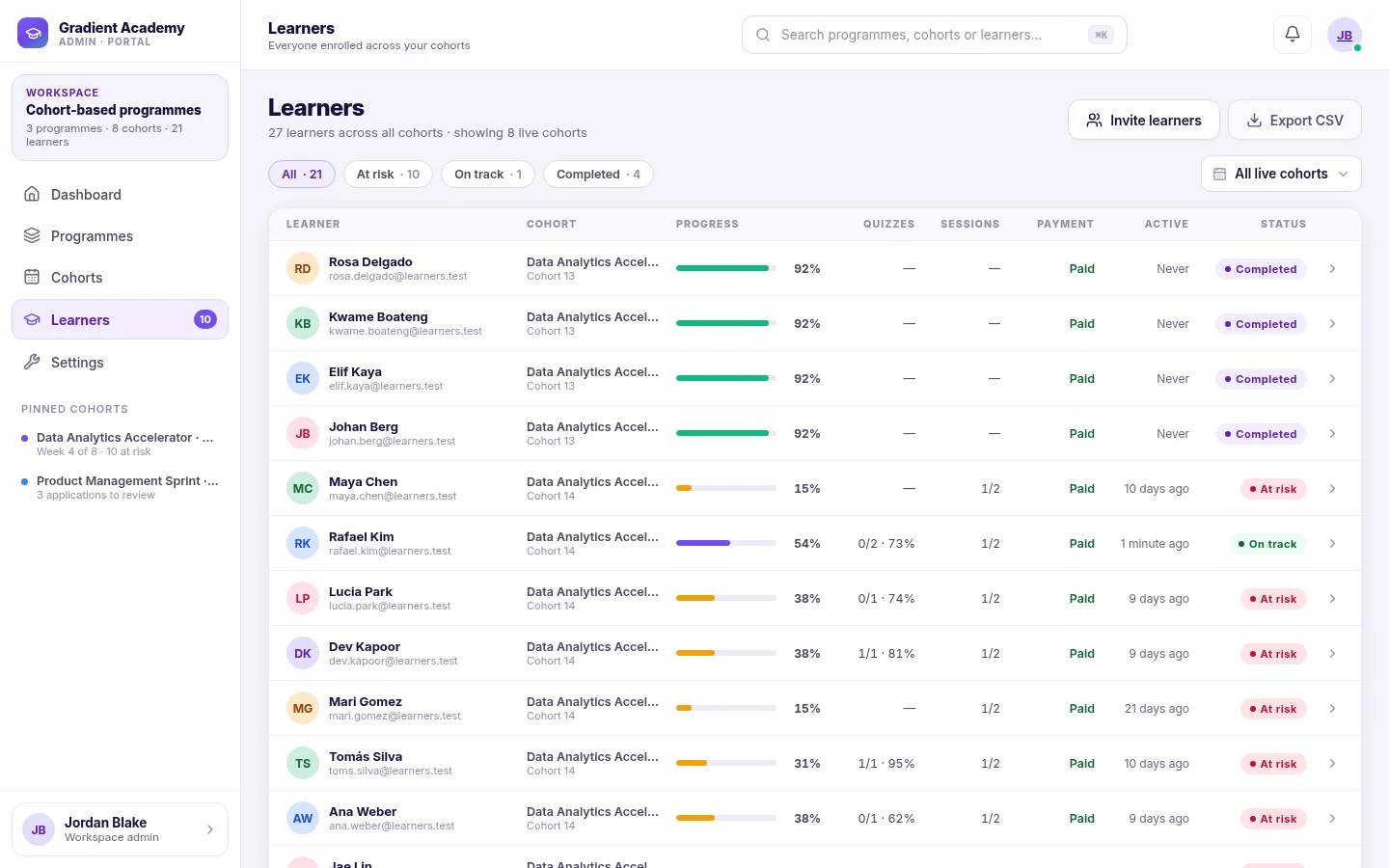
Progress tracking. The batch roster shows each learner's progress, quiz results, session attendance, payment and status, with All, At risk and Completed filters and a CSV export.
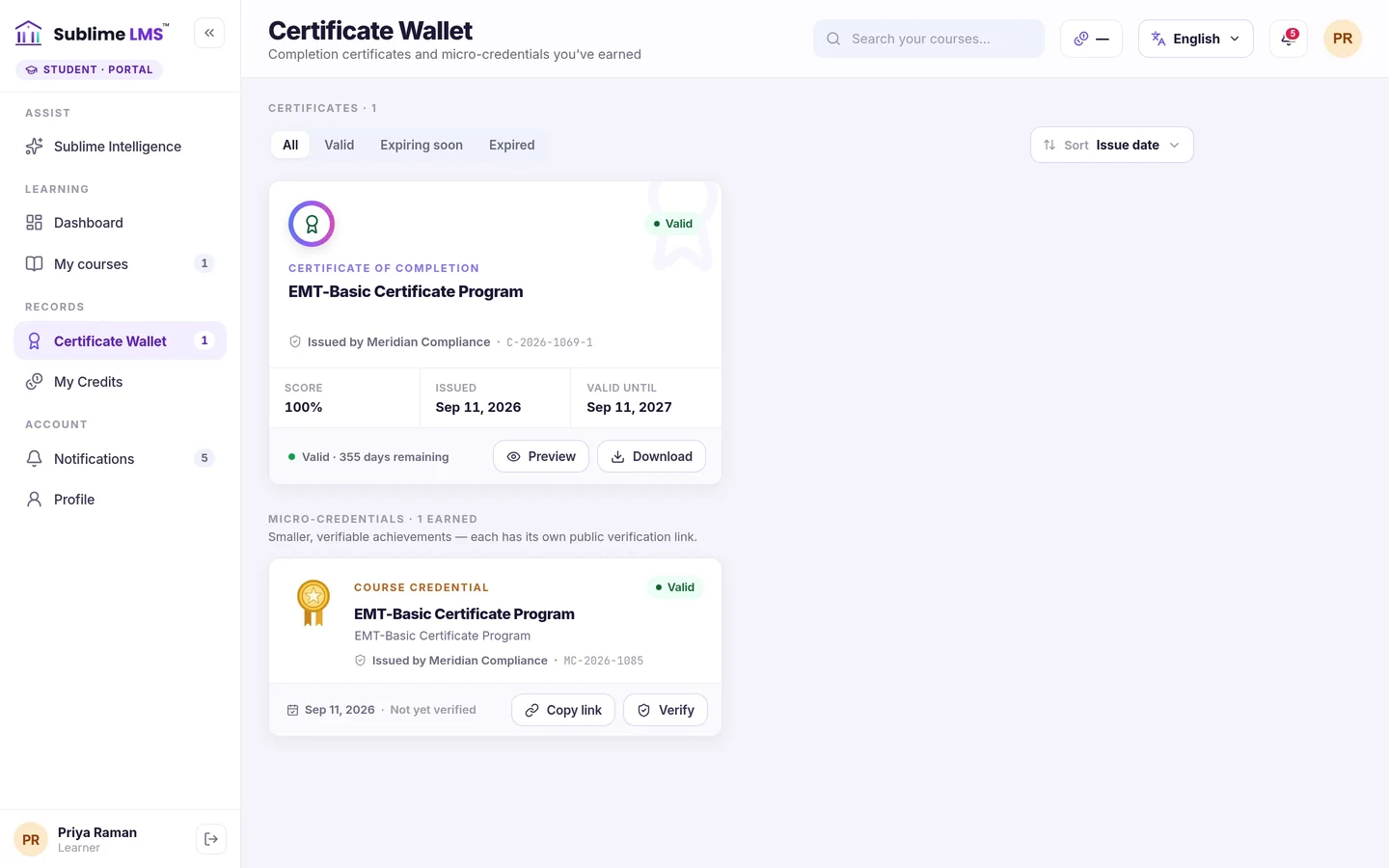
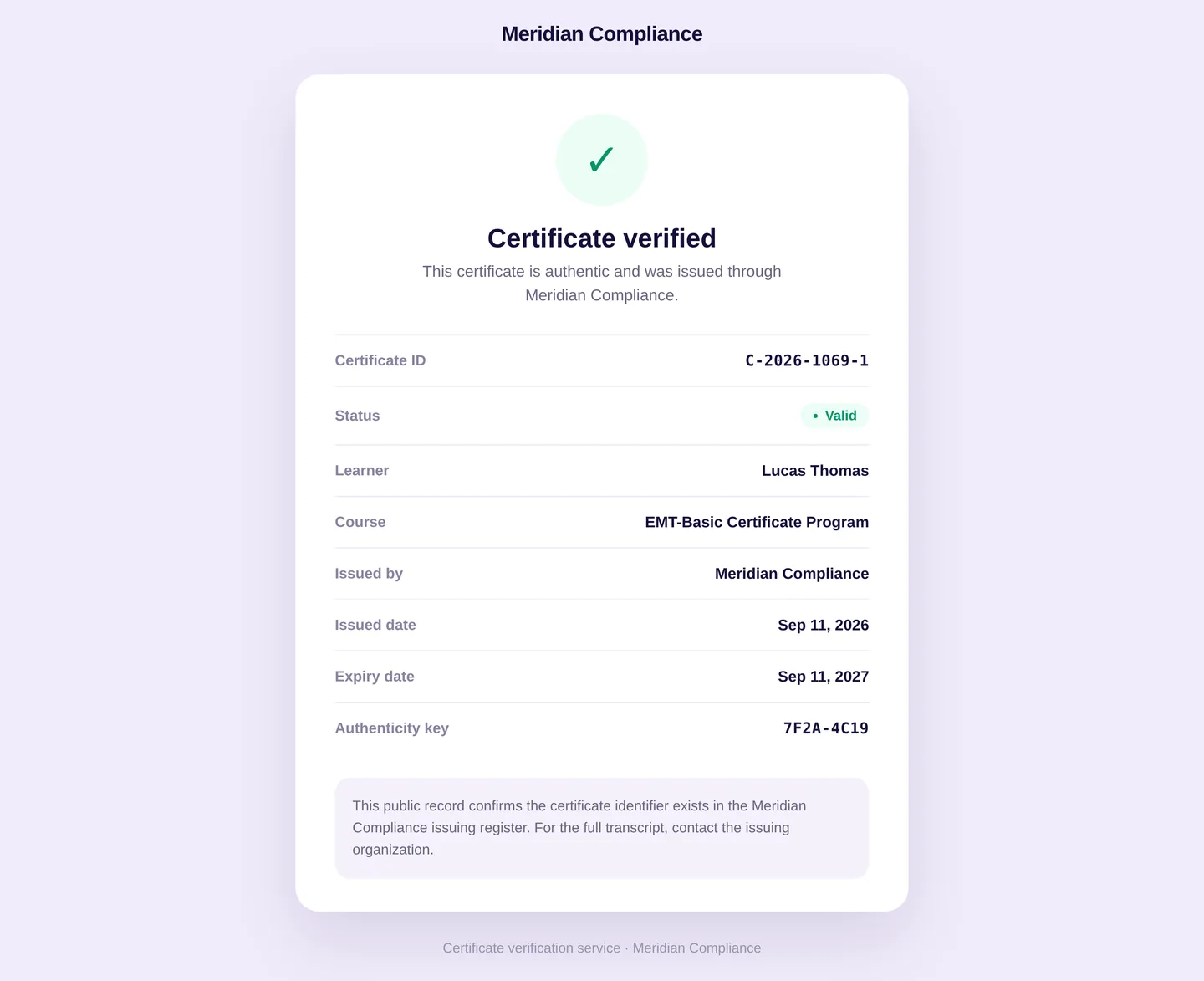
Certificates. Completed courses that grant a certificate put it in the learner's wallet, downloadable as a PDF and backed by a public verification link.
Build it once, run it every term
The curriculum belongs to the program. Each intake is a batch of that program — so opening the next one is scheduling, not rebuilding.
- A batch per intake — its own start and end dates, weekly schedule, capacity, price and roster.
- Four ways in — Free, Paid, Application or Waitlist, chosen per batch.
- Duplicate the last one to open the next intake; the program's content carries over untouched.
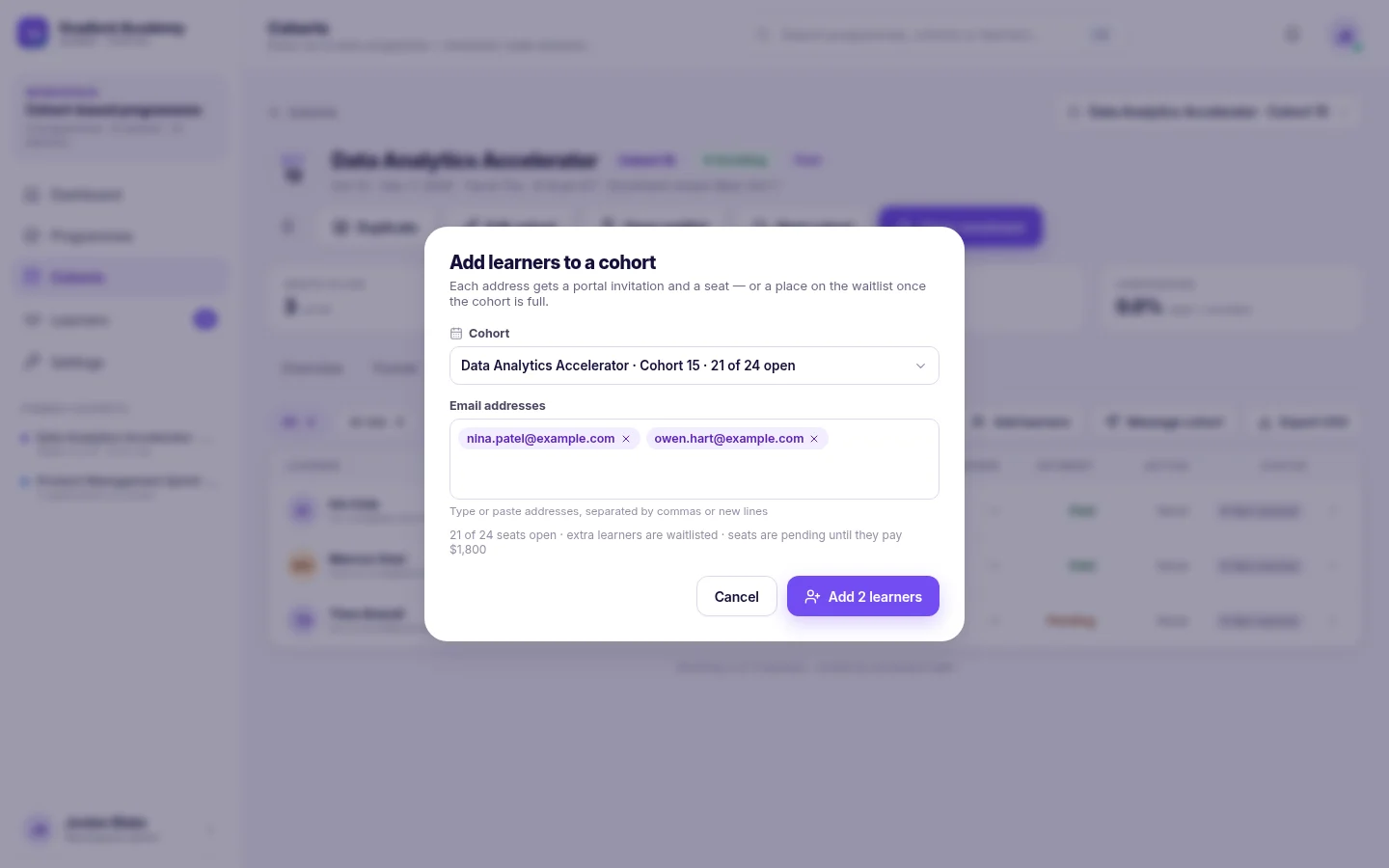
- Add learners directly by email when your intake happens offline.
Outcome: the program is maintained in one place while any number of batches run against it, past, present and planned.
Opening the next batch
Dates, weekly schedule, capacity, the enrollment window and what happens when it fills.
Filling the roster
Add learners by email against the seats you have left; extras go to the waitlist.
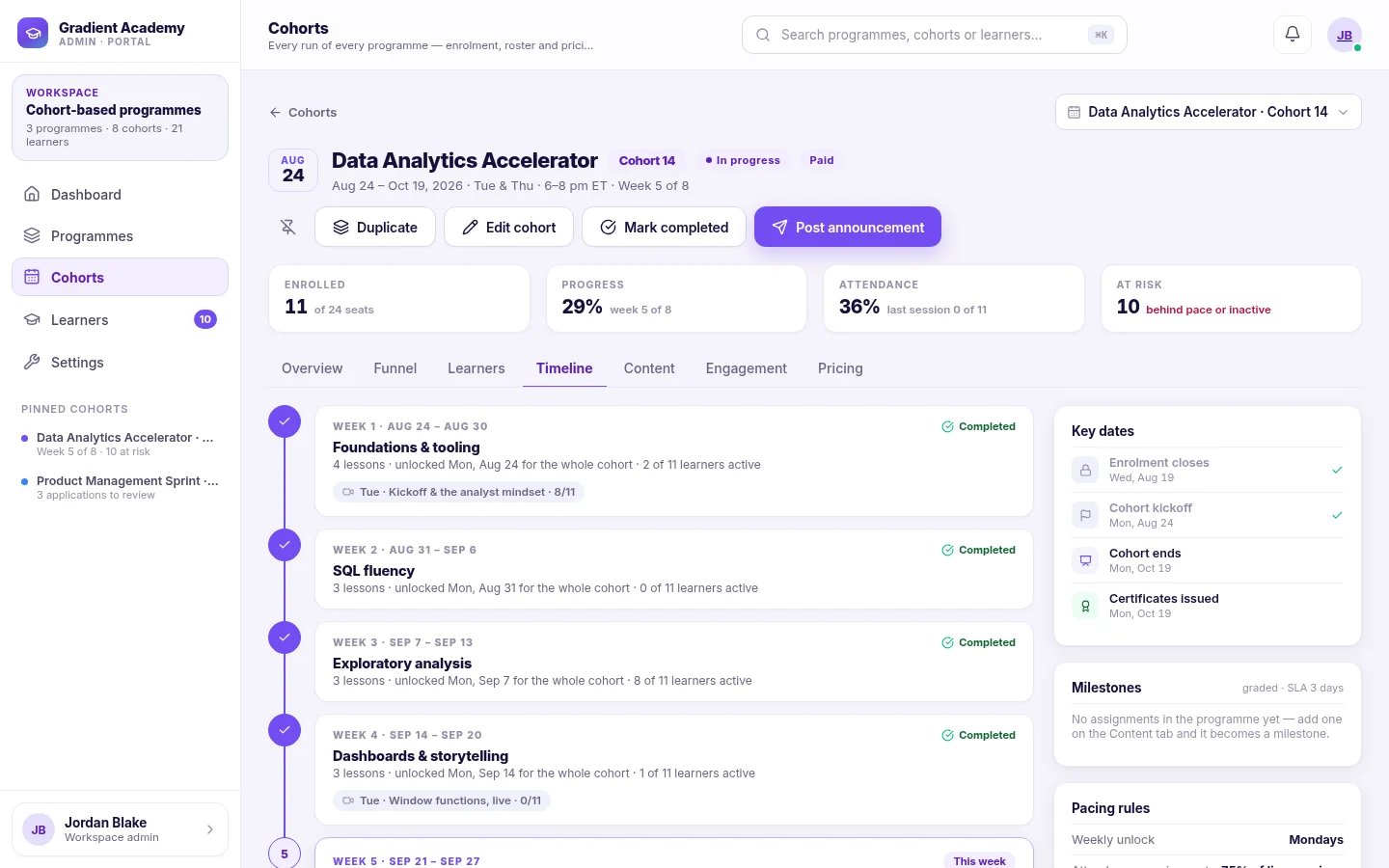
Structured delivery, week by week
The program's modules become the batch's weeks. Each one opens for everyone on schedule, so the group moves together instead of scattering.
- Reading
- Video
- Quiz
- Assignment
- Resource
- Discussion
- Weekly unlocks every Monday or Sunday, or everything open from kickoff.
- Live sessions on the batch calendar, with attendance and recordings for anyone who missed one.
- Announcements emailed to the whole batch and pinned to their home screen.
- Sequential lessons — later lessons stay locked until the current one is complete, where you require it.
Outcome: every learner knows what this week asks of them, and staff can see how each week is landing.
Video that carries its own context
Captions and a timestamped, clickable transcript sit under every video lesson.
The learner's week, on opening
Their batch, the current week, this week's module and anything still open from before.
Assessment that says something
Quizzes for recall and assignments for practical work — both built into the lesson flow rather than bolted on at the end.
- Six question types — single choice, multiple choice, true/false, short answer, matching and ordering.Sublime Live
- Pass marks and attempt limits you set per quiz, with retakes where you allow them.
- Assignments as text, a file or a link — a document, a workbook, a repository or a deployed demo.
- Score, feedback, release or return — learners see written feedback with the grade, or get the work back for another attempt.
Single choice, multiple choice, true/false and short answer are on every plan. Matching and ordering, one question per screen and question shuffling are Sublime Live features.
Outcome: completion means something you can point to, and learners find out where they stand while the material is still fresh.
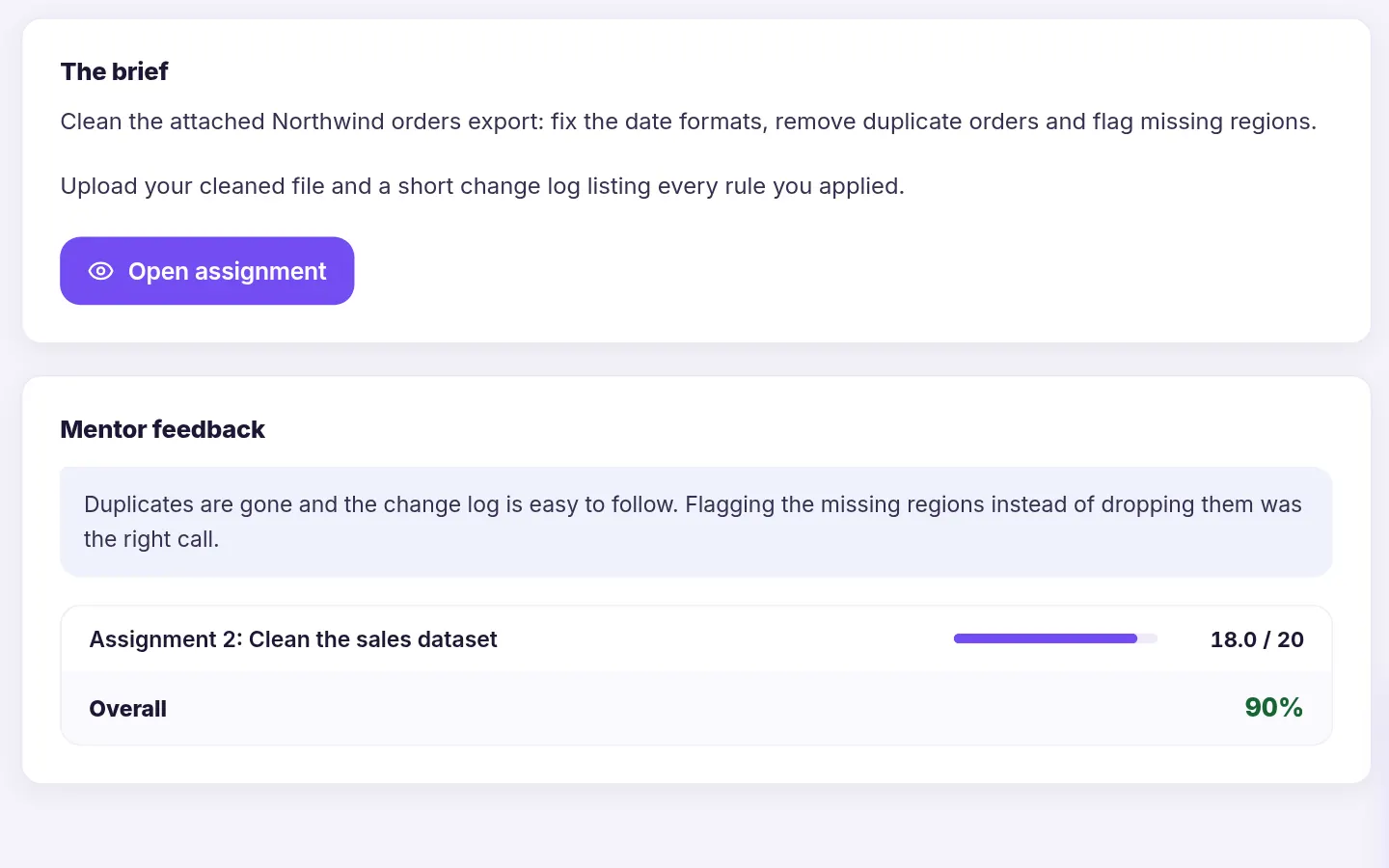
The grading queue
Who has handed in, who has not, what was late, what is still ungraded.
What the learner receives
The grade, and the written feedback that explains it, on the assignment itself.
Know where every learner stands today
Progress is tracked as learners work, so the roster is current rather than something someone has to compile.
- A roster per batch with progress, quiz results, session attendance, payment, last active and status.
- At risk, with the reason — no activity for seven days, or well behind the batch's pace.
- Catch-up nudges an admin can send to one learner or to everyone at risk in a batch.
- A recovery plan for the learner — their open work from earlier weeks, earliest first.
- Exportable reports for learner progress, course completion and inactive learners.Sublime Live
Outcome: staff know who to reach out to and why, and learners are told exactly what to do to catch up.
Completion they can actually prove
Where a course grants a certificate, finishing it issues one in the learner's name — and anyone can check it is real without contacting you.
- A certificate wallet holding every credential the learner has earned, with Preview and Download.
- PDF download in four backgrounds, carrying your organization name, the final score and the issue date.
- A public verification link — a certificate ID and authenticity key anyone can check.
- Validity dates where you need them, with expiry and recertification for programs that lapse.
Outcome: graduates can evidence their training to an employer or a regulator, and you are not fielding verification emails.
Three roles, clearly separated
Sublime LMS has distinct permissions for learners, instructors and administrators. Each sees only what their role covers.
-
Learners
- Enroll from a cohort page, or are added by an admin
- Work through each week's lessons and join live sessions
- Take quizzes, hand in assignments and read their feedback
- See their own progress, recovery plan and certificates
-
Instructors & facilitatorsSublime Live
- Work only in the courses they are assigned to
- Edit that course's content and add learners to it
- Review, score and return submissions with feedback
- Follow each learner's progress, quiz results and activity
-
Administrators
- Create programs and courses, and assign instructors
- Schedule and price batches, and review applications
- Run announcements and send catch-up nudges
- See every learner across batches, and export the data
Where academies use Sublime LMS
-
Recurring training batches
The same program opened as a new batch each month or term, duplicated from the last one with fresh dates.
See the screen for Recurring training batches -
Instructor-led programs
Facilitators work in the courses they are assigned, grade the work and follow how their learners are doing.
See the screen for Instructor-led programs -
Video training libraries
Video lessons with captions and transcripts that resume where the learner stopped, released week by week.
See the screen for Video training libraries -
Skills programs with assessment
Practical assignments handed in as a document, a file or a link, scored against a rubric you write into the brief.
See the screen for Skills programs with assessment -
Certification & recertification
Programs that issue a dated certificate on completion, with expiry and a recertification path where training lapses.
See the screen for Certification & recertification -
Self-paced course catalog
Courses assigned to learners to work through on their own, with progress tracked the same way.
See the screen for Self-paced course catalog
Less administration, more teaching
One place for the whole intake
Enrollment, roster, weekly content, grading and certificates live together instead of across a form, a spreadsheet and an inbox.
Content built once, run many times
The program is maintained in one place while any number of batches run against it, so improving a lesson improves every future intake.
A clear next step for every learner
Learners always see this week's work and anything still open from before, rather than having to ask where they are.
Progress you do not have to compile
The roster updates as learners work, so a status check is a screen you open rather than a report someone builds.
Completion you can evidence
Certificates carry a score, an issue date and a public verification link, so a learner's claim can be checked without you in the loop.
Instructors kept in their lane
Facilitators see the courses they teach and nothing else, so you can bring in guest instructors without opening up the workspace.
Run your next intake from one connected platform
See how an academy program runs in Sublime LMS — from opening the batch to the certificate your graduates can prove.