Support structured digital learning across university programs
Give students a clear place to learn and faculty a focused place to teach — with courses, assessments, assignment feedback, progress and completion organized in one platform.
- Structured, module-by-module courses
- Faculty feedback on assignments
- Progress for every student
Many courses, many teams, one clear experience
University programs span departments, faculty and cohorts of students. These are the problems Sublime LMS helps each group solve.
-
The need
Delivering courses students can follow
How Sublime LMS helpsCourses built as modules and lessons — readings, videos, files, quizzes, assignments and discussions — in one course player that resumes where students left off.
See how -
The need
Assessing work and returning feedback
How Sublime LMS helpsQuizzes with attempt rules and six question types; assignments faculty score, comment on and release — or return for revision.
See how -
The need
Keeping faculty focused on their own courses
How Sublime LMS helpsAn instructor workspace scoped to each instructor's assigned courses, with their students' progress and submissions.
See how -
The need
Seeing progress across programs
How Sublime LMS helpsAdministrators see completion, certificates and every learner's status across courses — with progress and completion reports on Sublime Live.
See how
From course setup to completion
How a university program runs in Sublime LMS, using the workflows the product has today.
- 01 · Build
Create courses
Administrators create courses; modules and lessons are authored in the course editor, with optional approval before changes go live.
- 02 · Staff
Assign faculty
Instructors are assigned to the courses they teach and see only those in their workspace.
- 03 · Enroll
Bring in students
Students are invited and enrolled by email, from a list or by CSV — or join a scheduled cohort.
- 04 · Learn
Work through the course
Students follow modules in the course player, take quizzes and hand in assignments.
- 05 · Assess
Review and give feedback
Faculty grade submissions and release feedback, or return work for revision; progress is tracked per student.
- 06 · Complete
Finish and certify
Completion is recorded, and courses that grant certificates issue one students can download and verify.
Sublime LMS in a university program
Real screens from Sublime LMS, shown with fictional demo students and instructors.
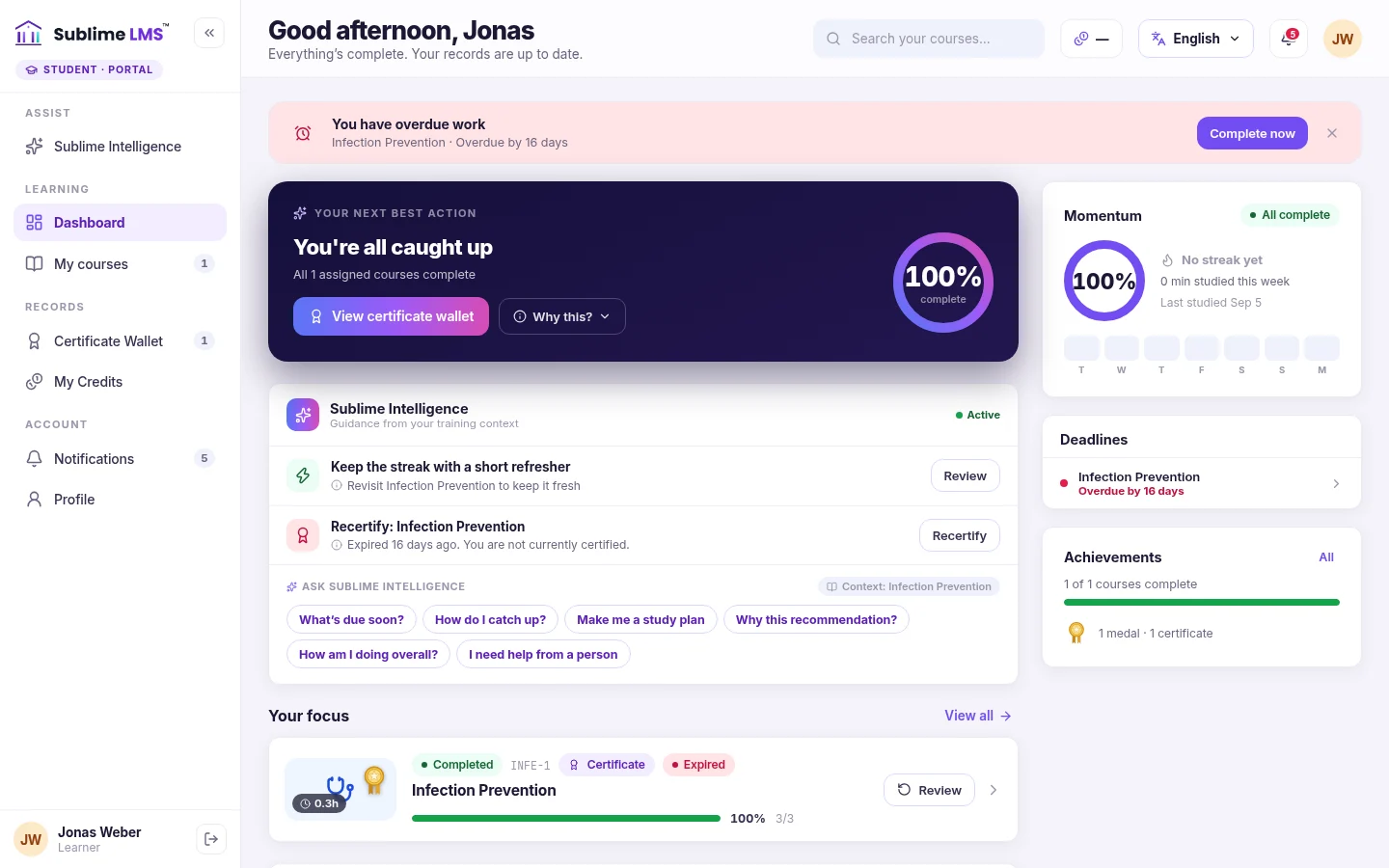
Student experience. Students land on a dashboard that leads with their next best action, then deadlines, their courses in focus and recent updates.
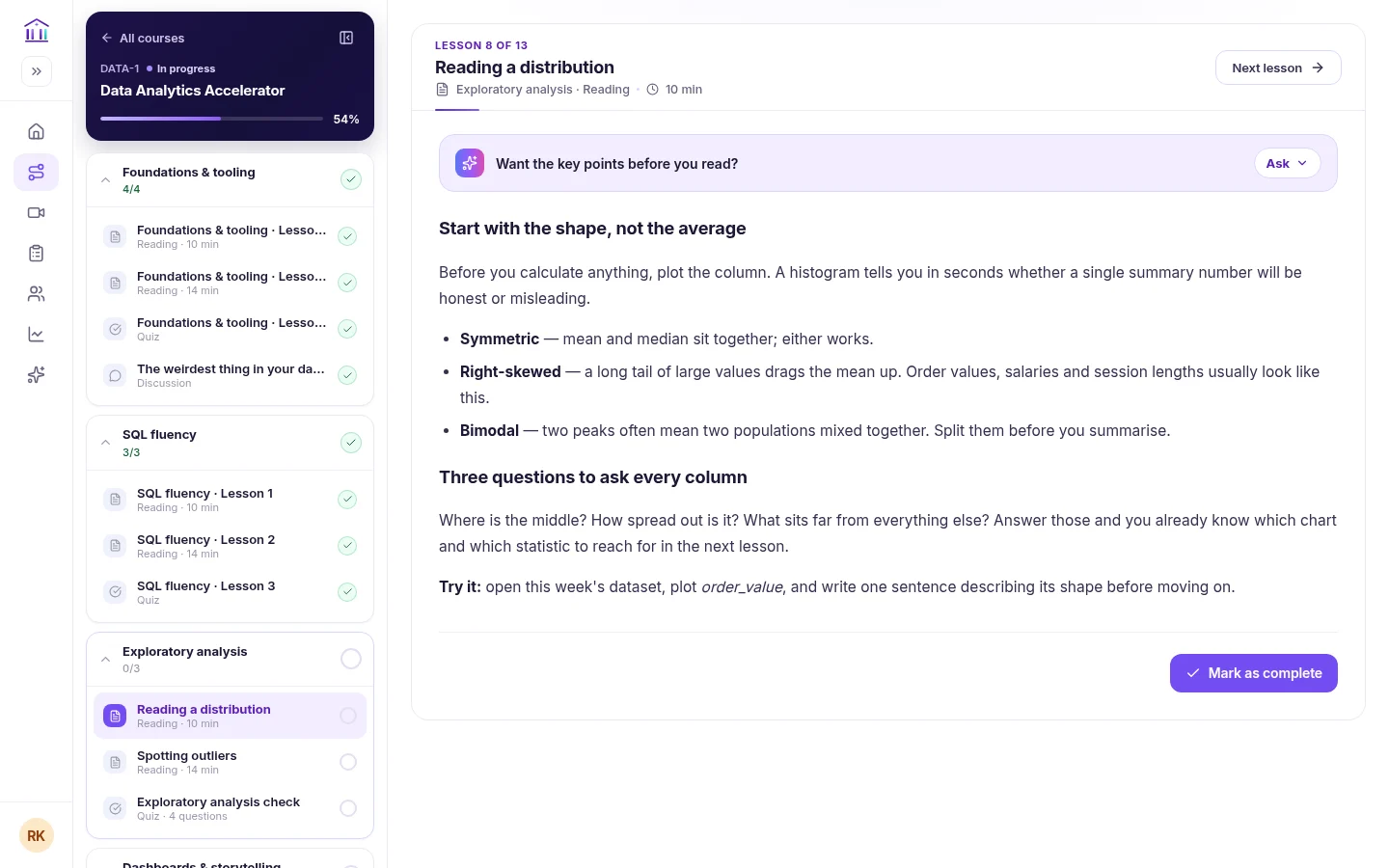
Course player. The course player keeps the outline beside each lesson, ticks off completed work and resumes at the next unfinished lesson.
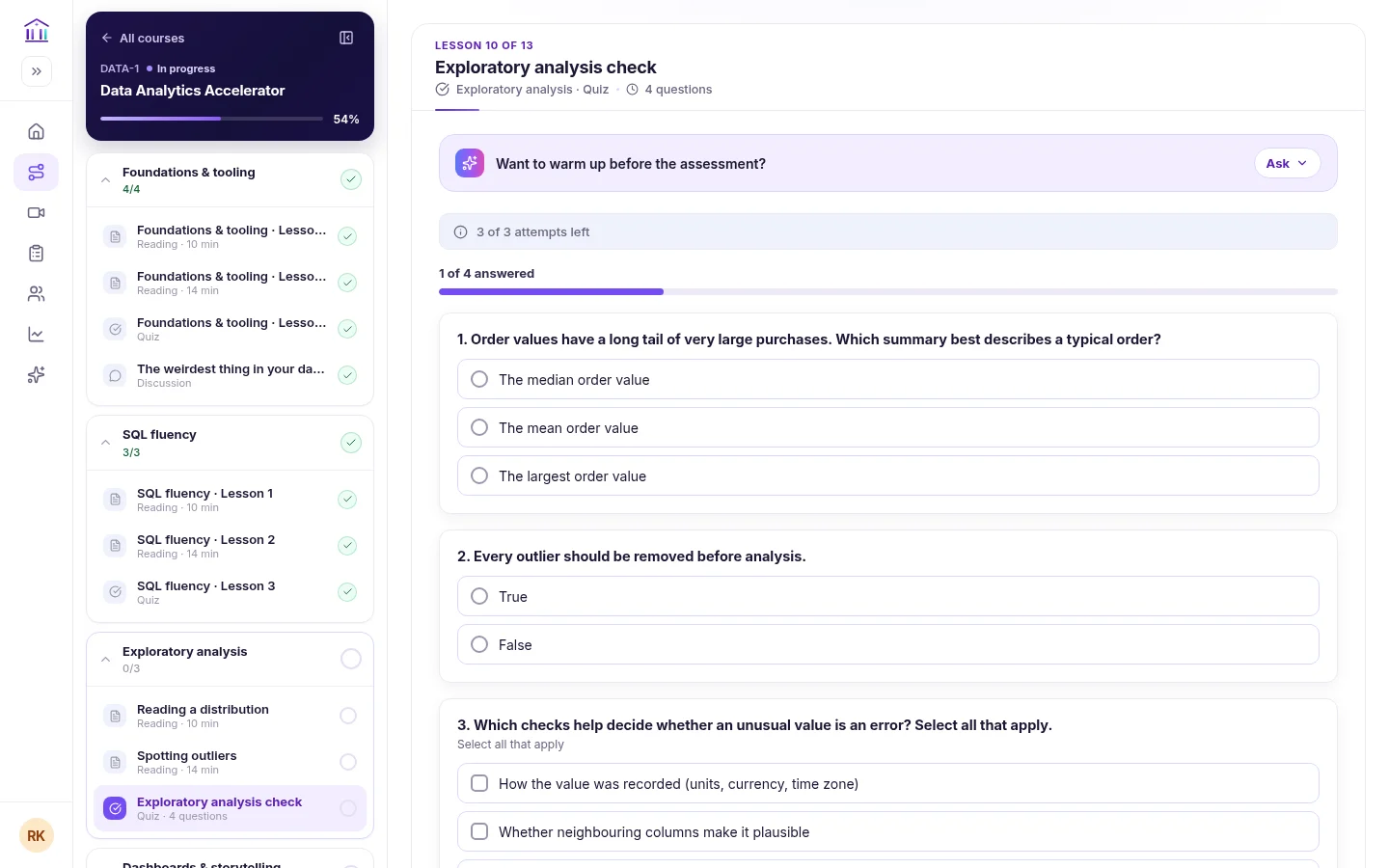
Quizzes. Quizzes show attempts left and questions answered, with single-choice, multiple-choice, true/false, ordering, matching and short-answer questions.
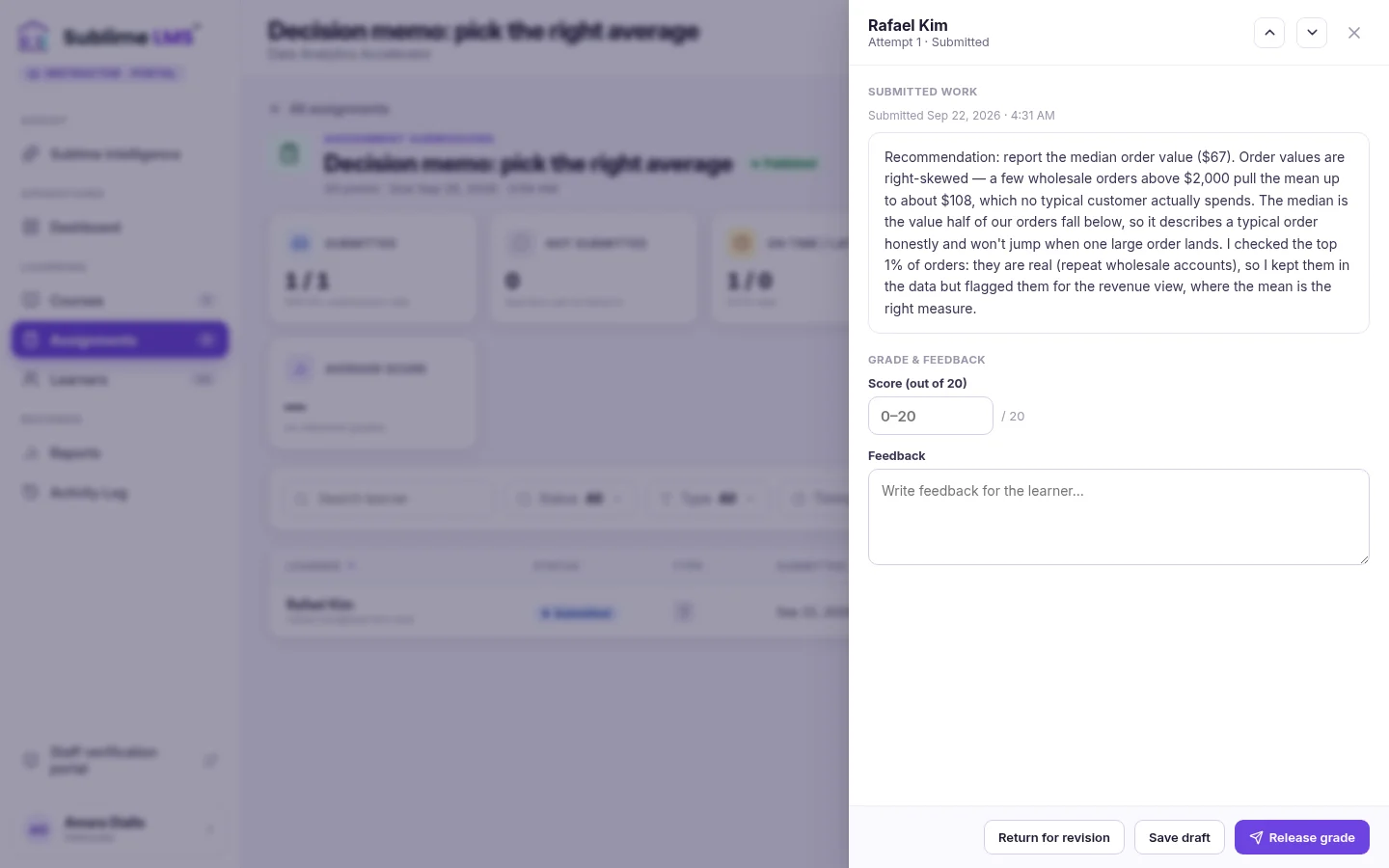
Assignments & feedback. Faculty review each submission beside a score and feedback box, then release the grade or return the work for revision.
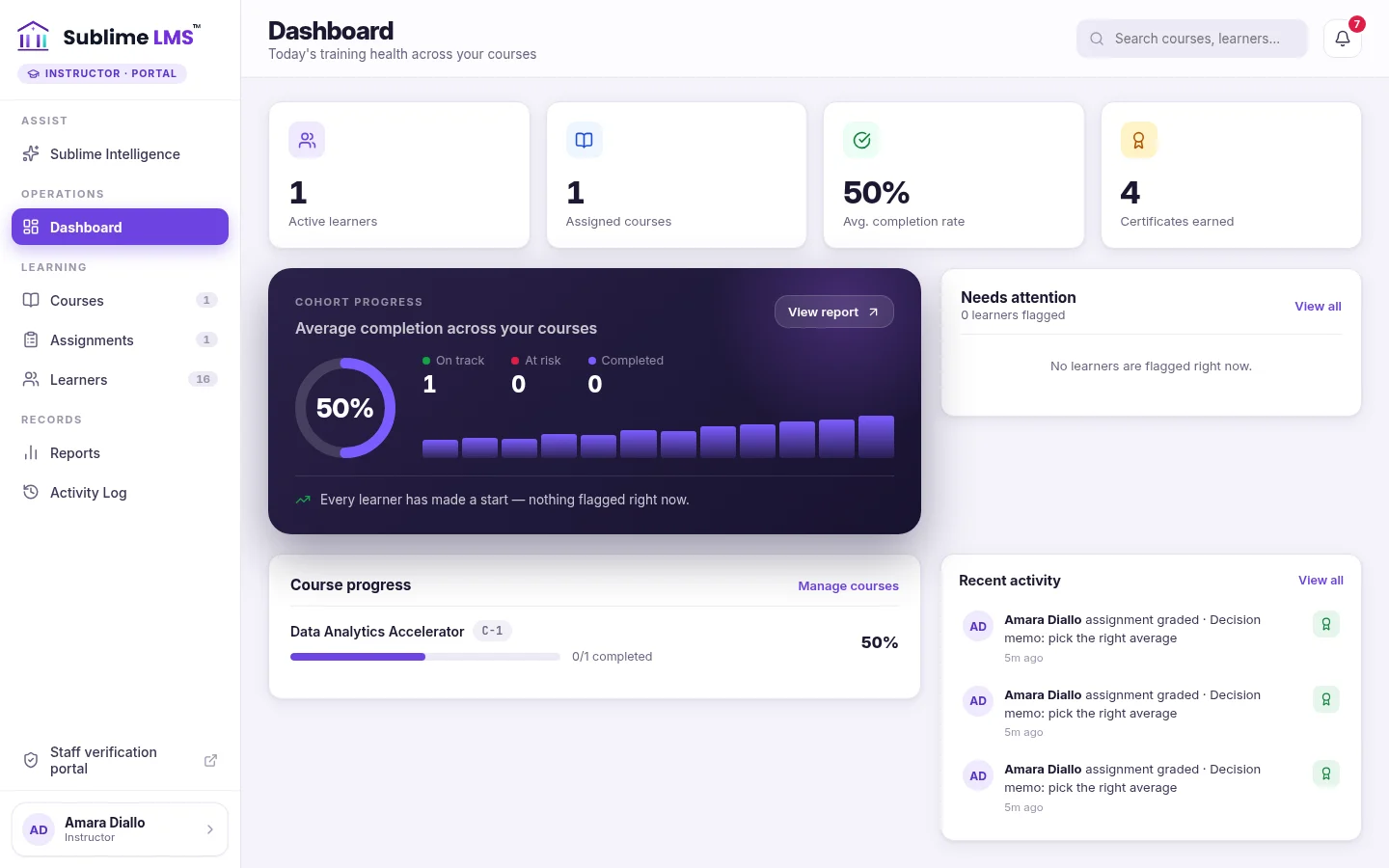
Instructor workspace. Each instructor's dashboard sums up their own courses — learners, completion, who needs attention and recent grading activity.
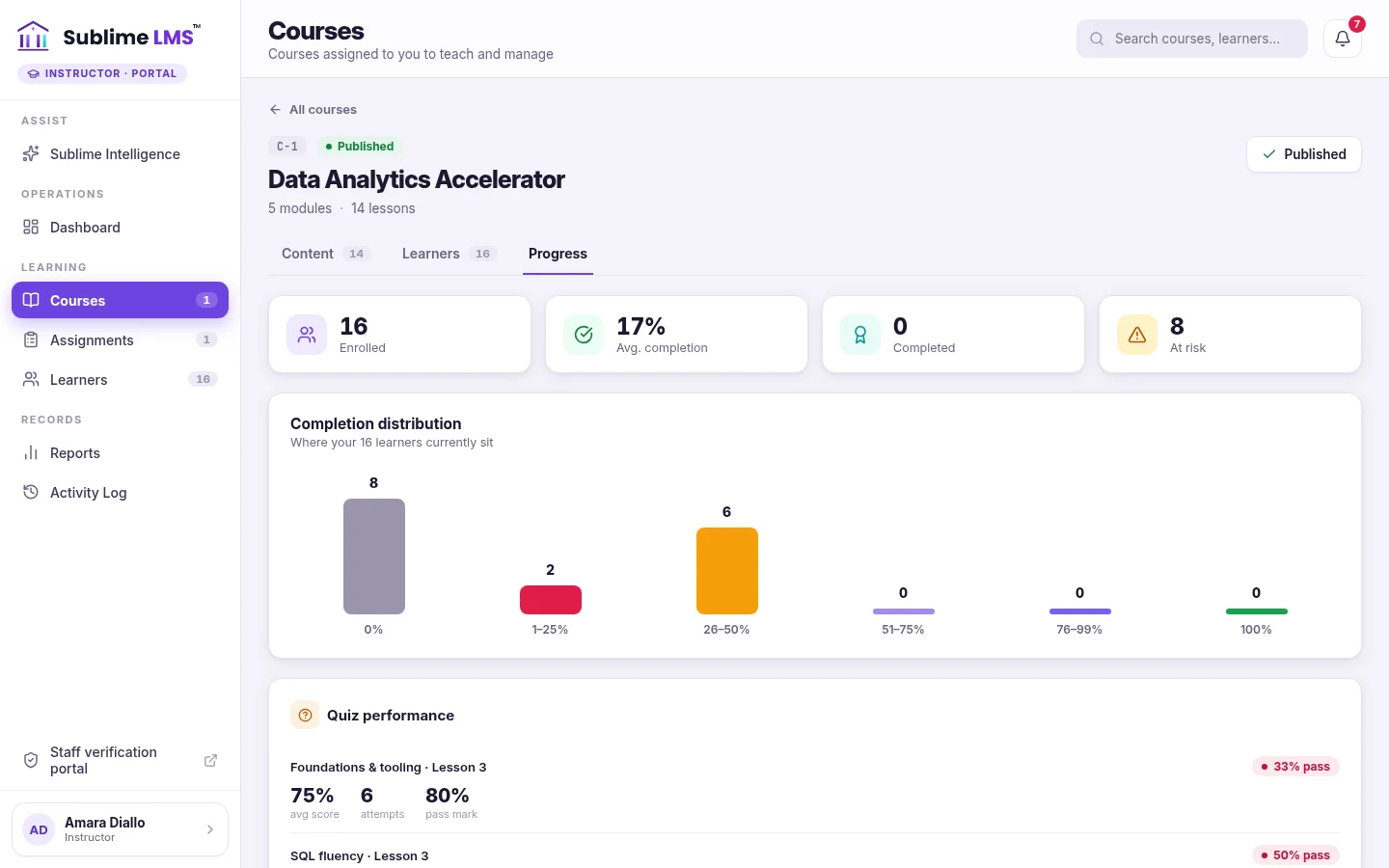
Progress tracking. A course's progress view shows completion bands, at-risk counts and how each quiz is performing across the class.
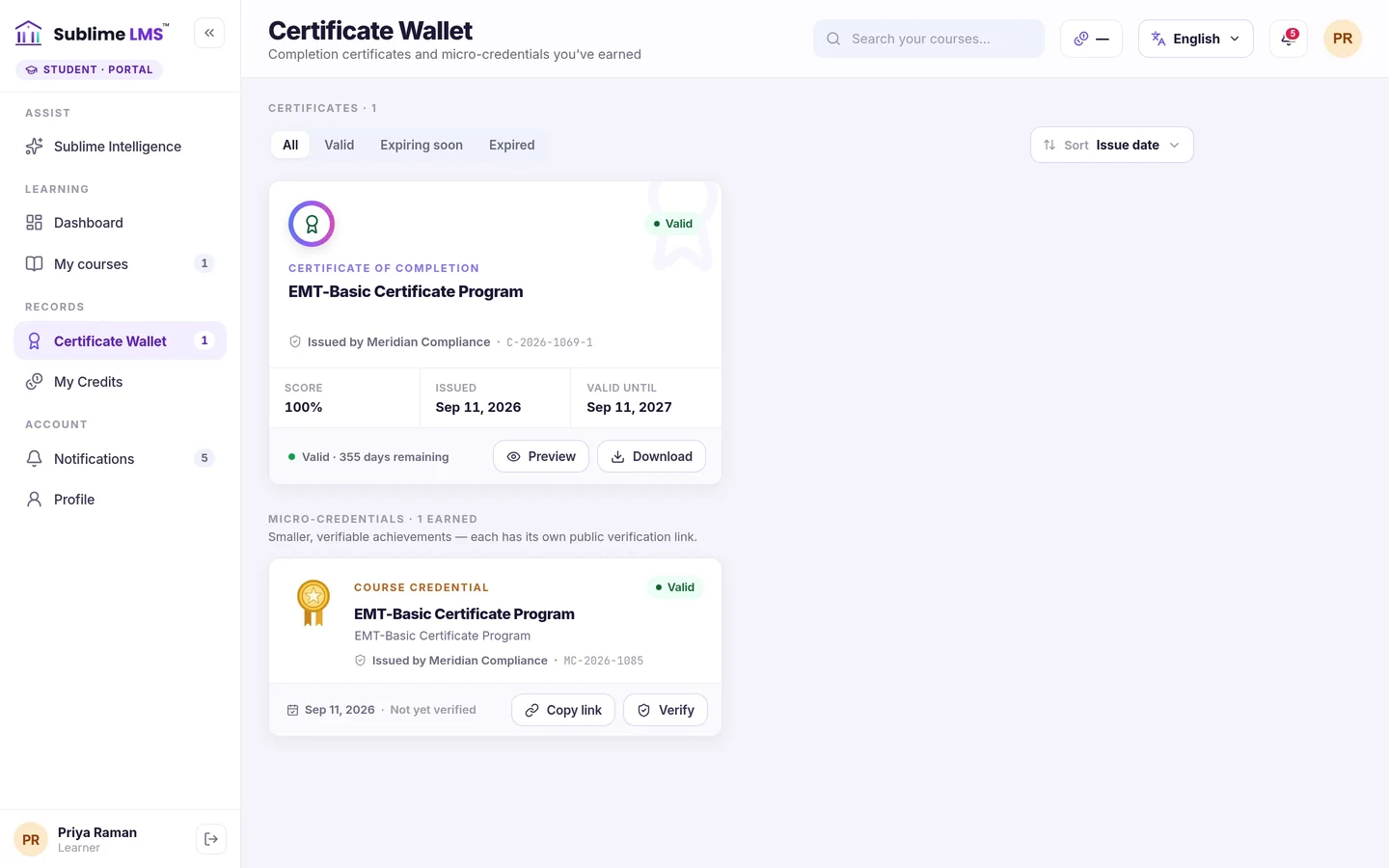
Certificates. Students keep certificates and micro-credentials in a wallet, download them as a PDF and share a public verification link.
Structured courses, built and kept current
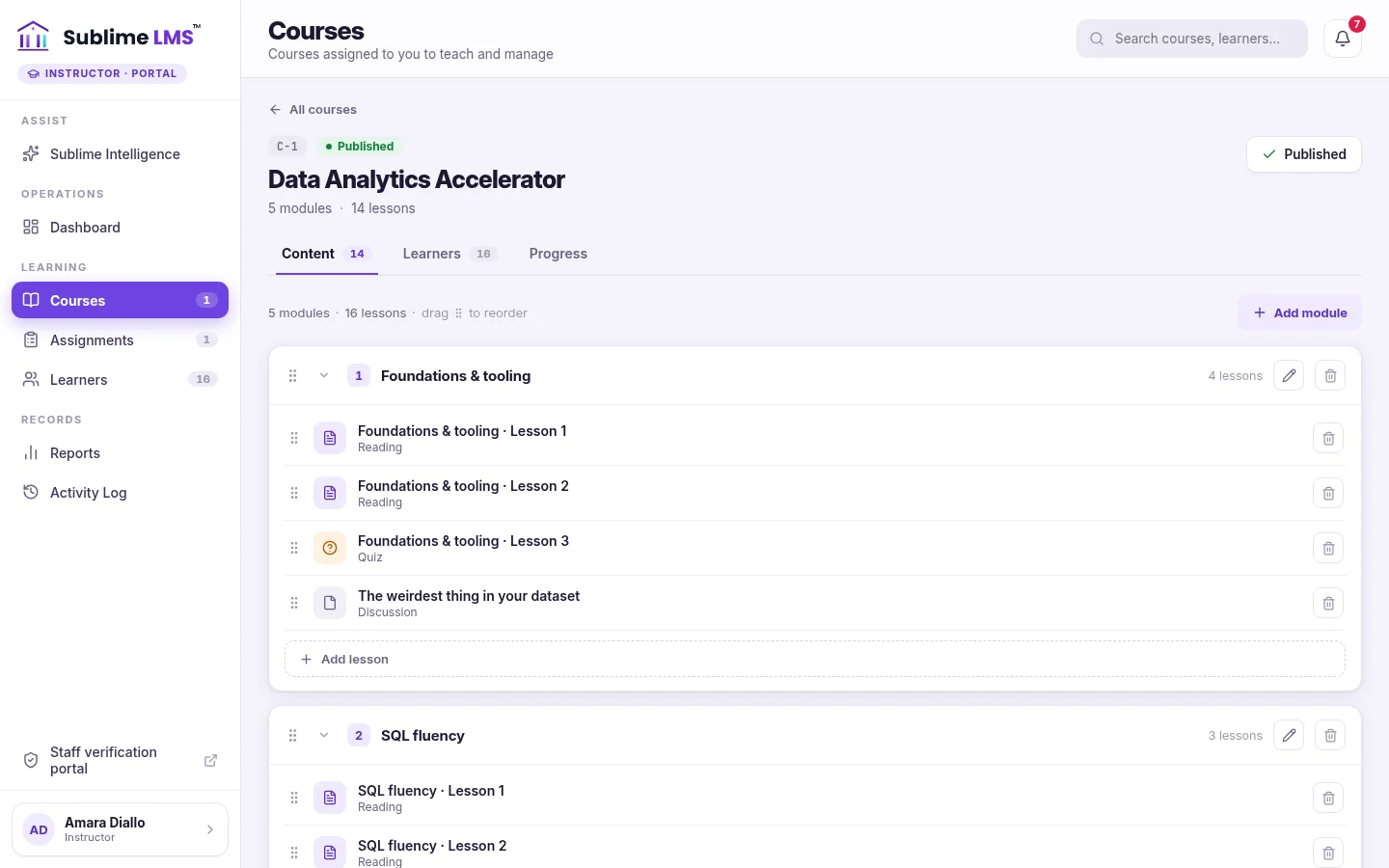
Courses are modules of lessons. Faculty and administrators author them in the course editor; students see them in order in the course player.
- Six lesson types — readings, videos with transcripts, files, quizzes, assignments and discussions.
- Safe updates — edits to a published lesson stay in draft until someone publishes the update.
- Optional approval — where your institution requires it, changes to a live course wait for review.
Outcome: students always see a finished, ordered course; faculty can improve it without disrupting the term.
Assessment with feedback students can act on
Quizzes check understanding with clear rules; assignments get a score and written feedback from faculty.
- Quizzes with pass marks, attempt limits and retakes where the course allows them.
- Assignments handed in as text, a file or a link, with due dates and late submissions marked.
- Grade and release — or return for revision so the student can submit a better attempt.
Outcome: students get feedback where they learn, and faculty work through submissions in one queue.
A workspace for faculty, not the whole institution
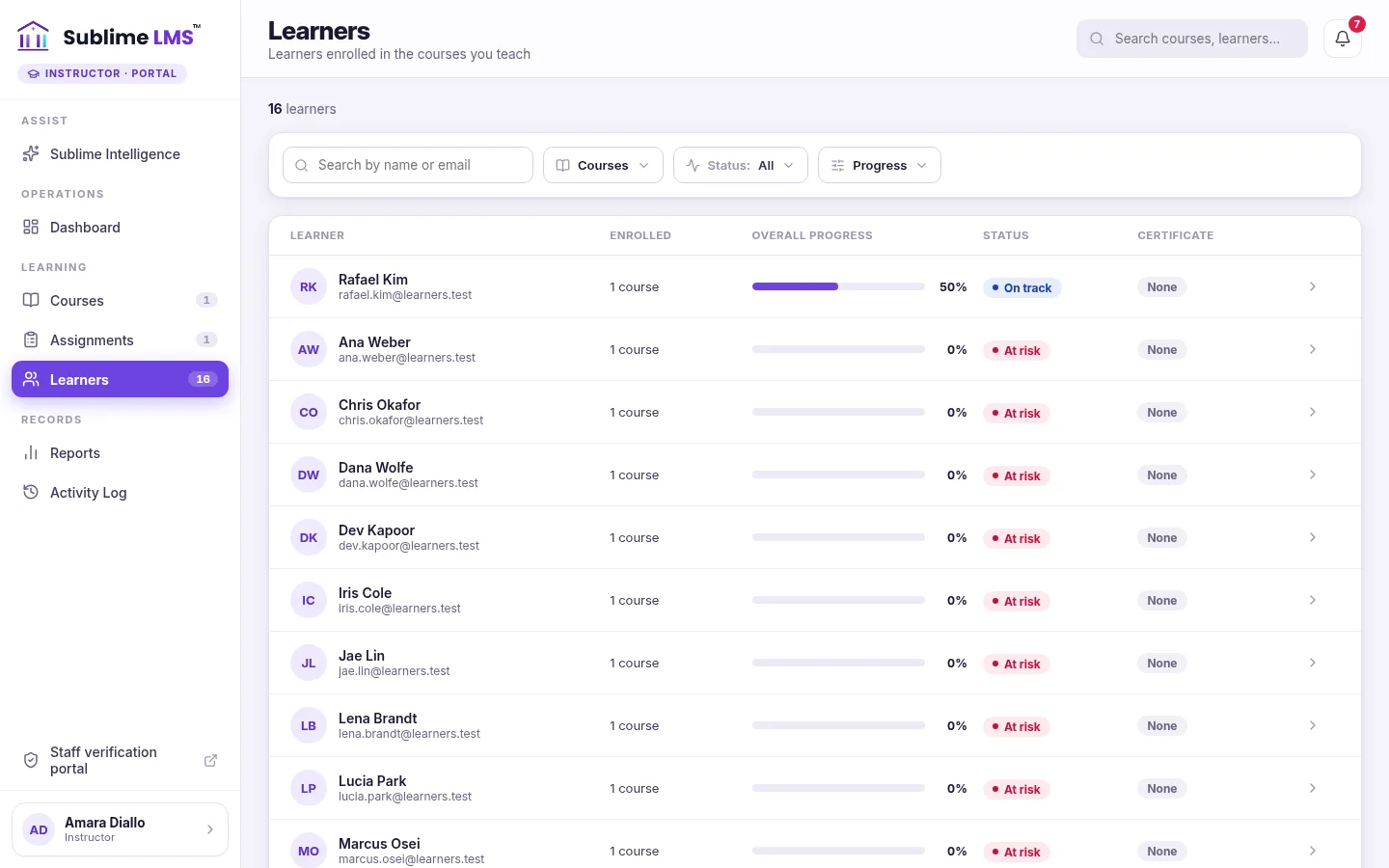
Instructors work only in the courses they're assigned, with the context they need about their own students.
- Their students, their courses — search and filter by course, status or progress.
- One student in detail — progress, quiz results, video analytics and recent activity.
- Submission notifications with a shortcut to review.
Outcome: faculty see who is on track or at risk in their classes without access to institution-wide settings.
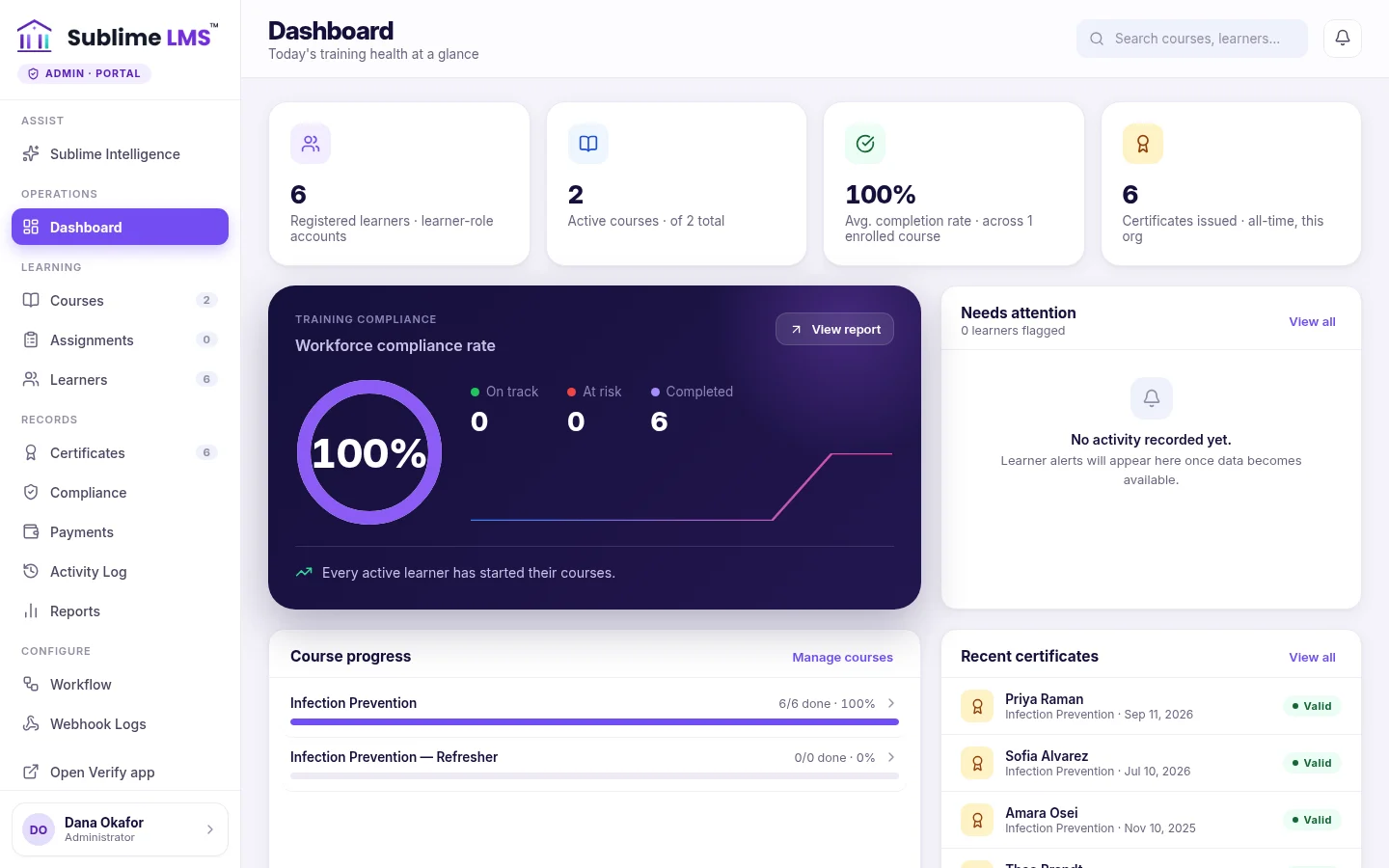
Program oversight for administrators
Program administrators see every course and learner in one console.
- Dashboard — registered learners, active courses, average completion and certificates issued.
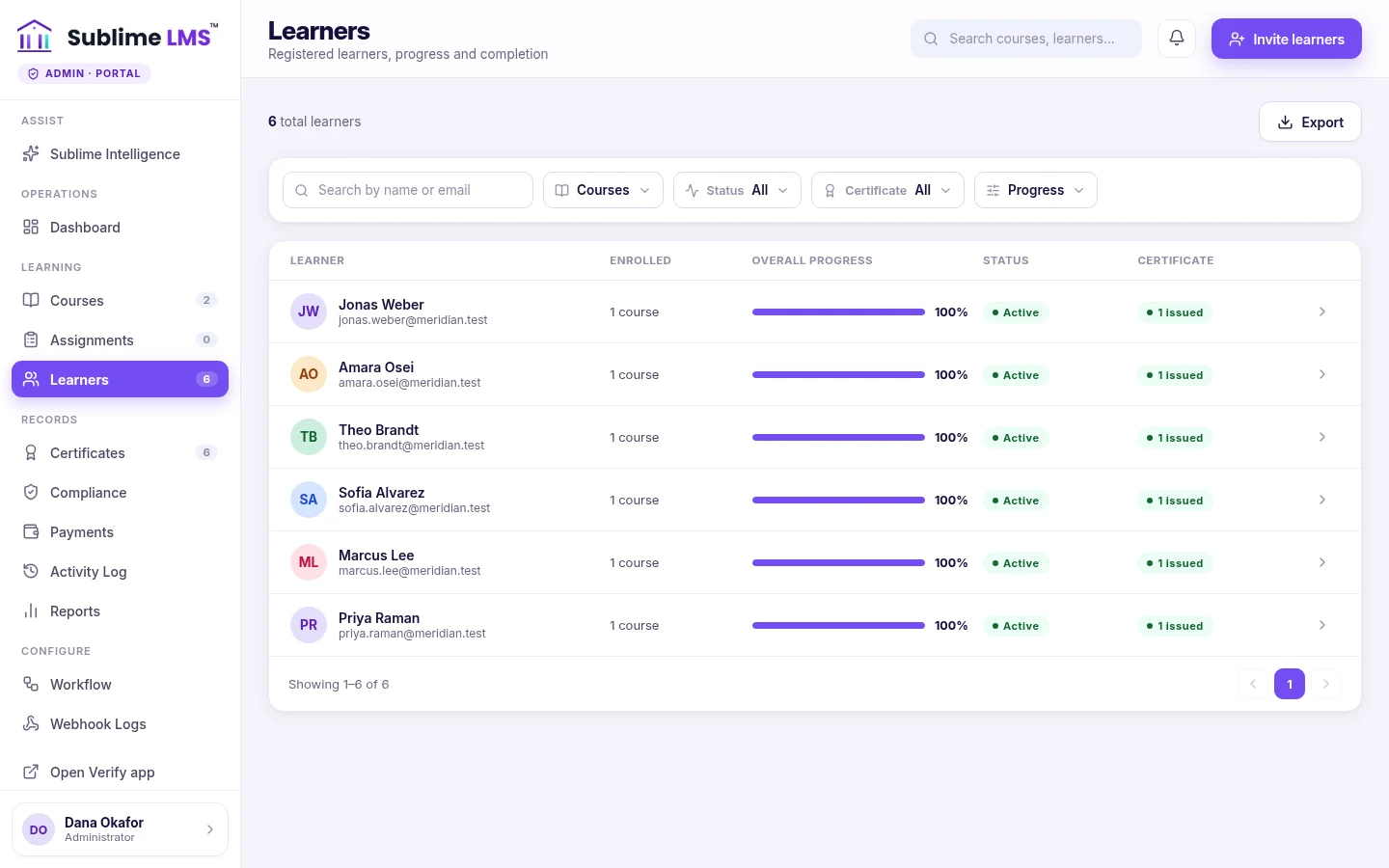
- Learner list across every course, with status, progress, certificate and export.
- Reports — learner progress, course completion and inactive learners, on Sublime Live.
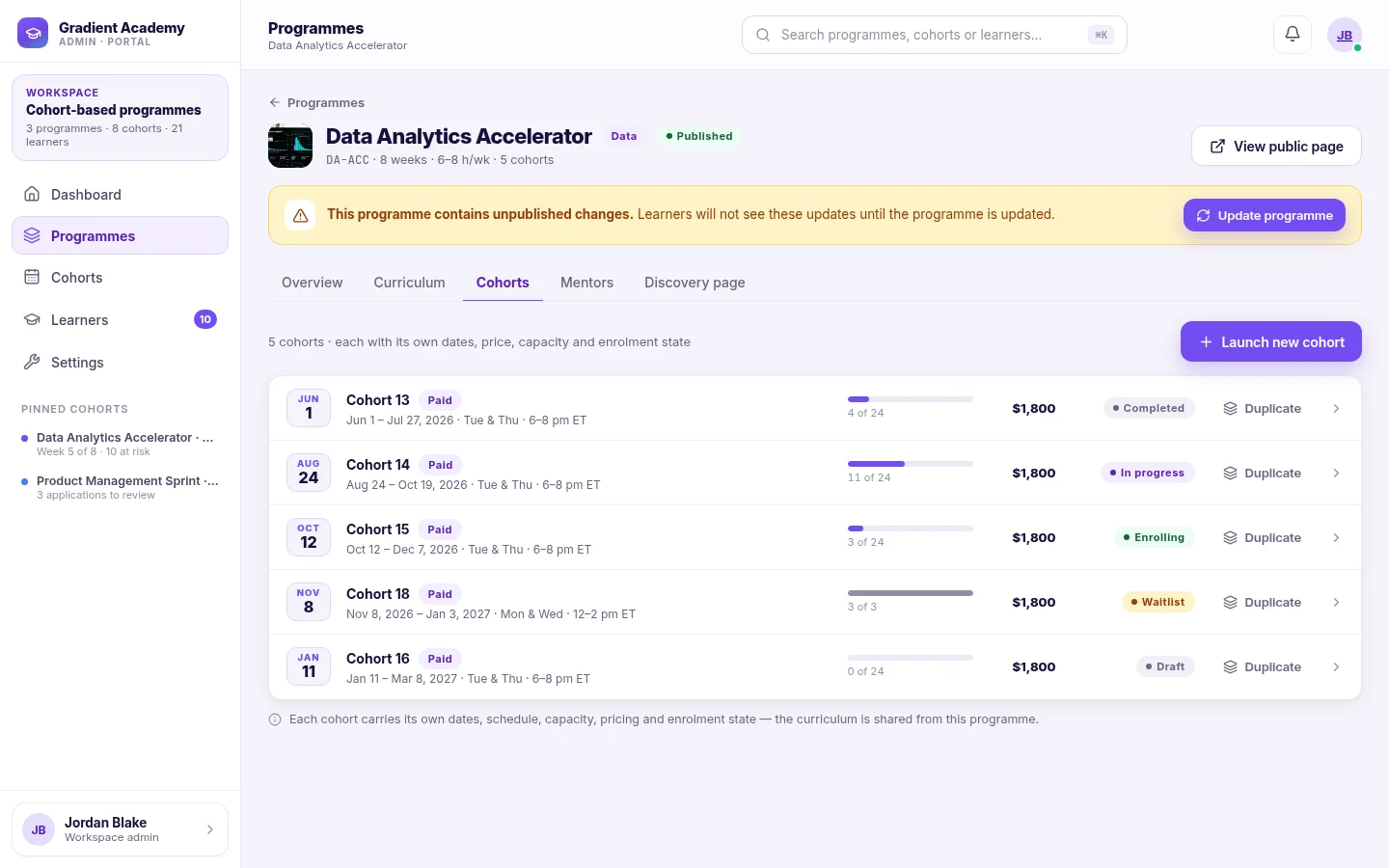
- Cohorts for intakes — run a program as scheduled cohorts with their own dates and roster.
Outcome: one view of how every course and student is progressing, without collecting spreadsheets from each department.
Every learner, every course
Search, filter by course, status, certificate or progress, invite learners and export the list.
Intakes as cohorts
One program, many scheduled runs — each cohort with its own dates, seats and roster.
Three experiences, clearly separated
Students
Follow their courses, take quizzes, hand in assignments, read feedback, see their progress and deadlines, and keep their certificates.
Faculty & instructors
Work in the courses they're assigned: edit content, add students, review and grade, and follow each student's progress. No institution-wide settings.
Program administrators
Create courses and programs, assign instructors, invite students, set approval and certificate rules, run cohorts and see every learner's progress.
The instructor role and workspace, analytics and exportable reports are part of Sublime Live.
Where universities use Sublime LMS
-
Course-based learning
Each course as ordered modules and lessons, resumed where the student left off.
See the screen for Course-based learning -
Faculty-led instruction
Instructors run their own courses and see their own students — nothing more.
See the screen for Faculty-led instruction -
Academic cohorts & intakes
Run a program for each intake as a cohort with its own dates, roster and weekly rhythm.
See the screen for Academic cohorts & intakes -
Assignments & feedback
Essays, reports or project links submitted, graded and returned with comments.
See the screen for Assignments & feedback -
Quizzes & knowledge checks
Low-stakes checks with retakes, or graded quizzes with attempt limits and pass marks.
See the screen for Quizzes & knowledge checks -
Short courses & certificates
Continuing-education and short courses that issue a verifiable certificate on completion.
See the screen for Short courses & certificates
Clearer for students, simpler for staff
A clear path for students
Every course in order, the next step first, and feedback where they learn.
The right access for each role
Faculty see their courses; administrators see the program; students see their own work.
Progress in one place
Completion, status and certificates across courses without assembling them by hand.
Today students sign in with Sublime LMS accounts. SSO and LTI 1.3 are on the Enterprise roadmap and not yet available, and there is no student-information-system integration.
Give your programs a clearer digital learning experience
See Sublime LMS from a student's, an instructor's and a program administrator's point of view — using one of your own courses as the example.