Setting up certificate renewal and recertification
Make certifications expire and renew on a schedule: write the policy, understand each status, handle exceptions, and keep an eye on compliance across the organization.
On this page
What this guide covers
- Which courses recertification applies to, and what happens to courses that don't use it
- The policy settings that decide validity, reminders and the renewal window
- What a learner does to renew, and what happens to their current certificate meanwhile
- How to extend, exempt or require renewal, and where to check compliance
How recertification works Link to “How recertification works”
Recertification is switched on per course, by giving the course a recertification policy. Courses without a policy keep the usual certificate behavior. A learner who completes a course with a policy is certified for the validity period you set, then renews by completing the course again, or a separate renewal course.
As dates pass, the certification moves through its statuses automatically: active, renewal available, expiring soon, then expired or renewal required. Renewal in progress, renewed, exempt and extended cover the other situations. Each renewal starts a new certification cycle, and earlier cycles are kept as history.
Related feature: Corporate learning & compliance
Write the policy Link to “Write the policy”
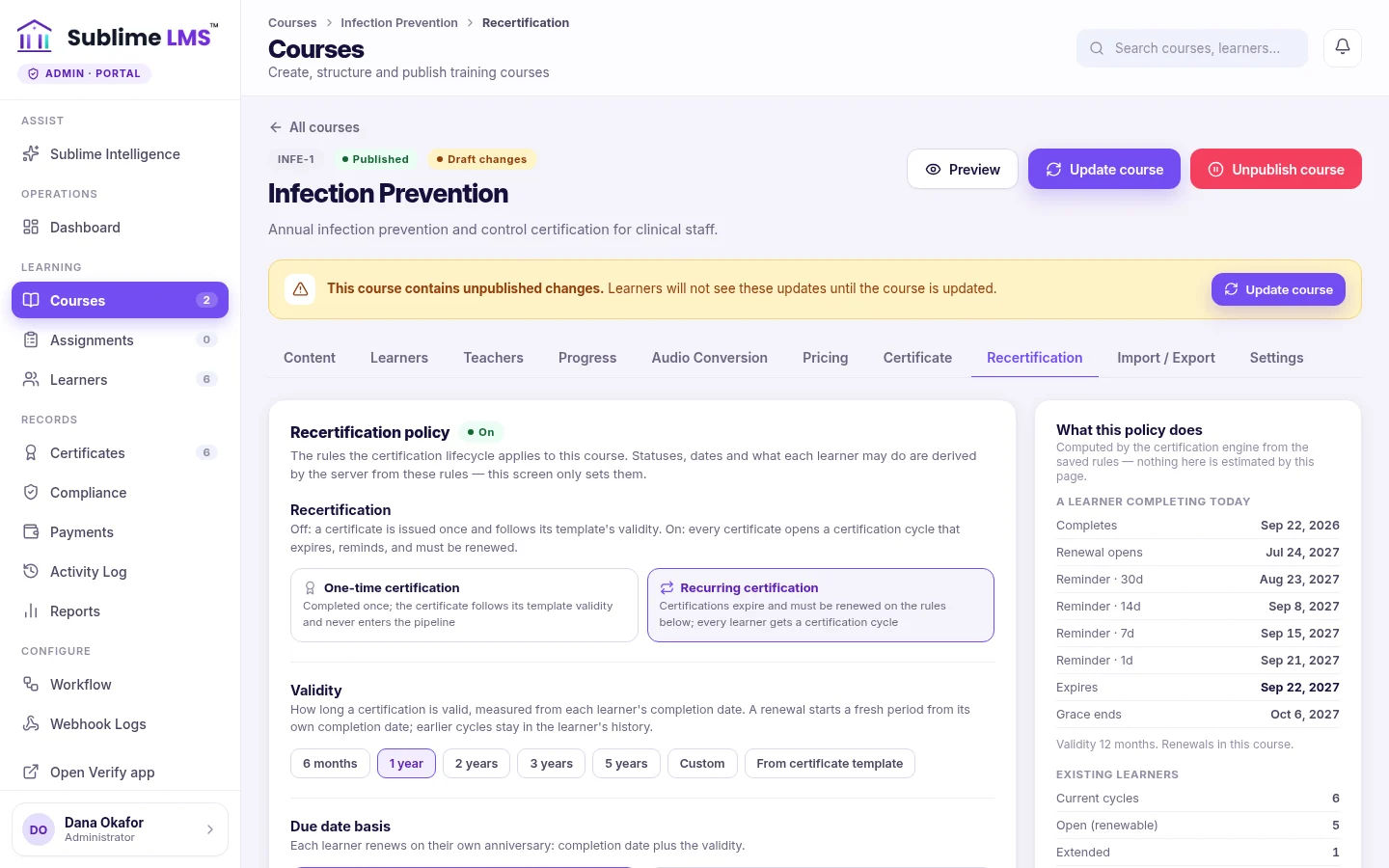
Open the course's Recertification tab. The main settings:
- Validity: how long a certification lasts from the learner's completion date. The default is 12 months.
- Due basis: each learner renews on their own schedule, or everyone renews together on a fixed organization-wide date.
- Early renewal window: how many days before expiry a learner may start renewing. The default is 60 days.
- Grace period: how long after expiry a late renewal is still accepted before the certification reads Expired.
- Renewal course: leave it blank to renew in the same course, or point it at a newer edition.
- Assignment: renewals can be assigned automatically when the window opens, or assigned by an administrator.
- Learner reminders: the days before expiry when learners are reminded (30, 14, 7 and 1 by default), how often overdue learners are reminded, and whether reminders go in-app, by email or both.
- Administrator reminders and an optional daily or weekly compliance digest.
Before you save, the tab previews what the policy will do, with example dates for completion, the renewal window opening, each reminder, expiry and the end of the grace period.
Related feature: Corporate learning & compliance
How learners renew Link to “How learners renew”
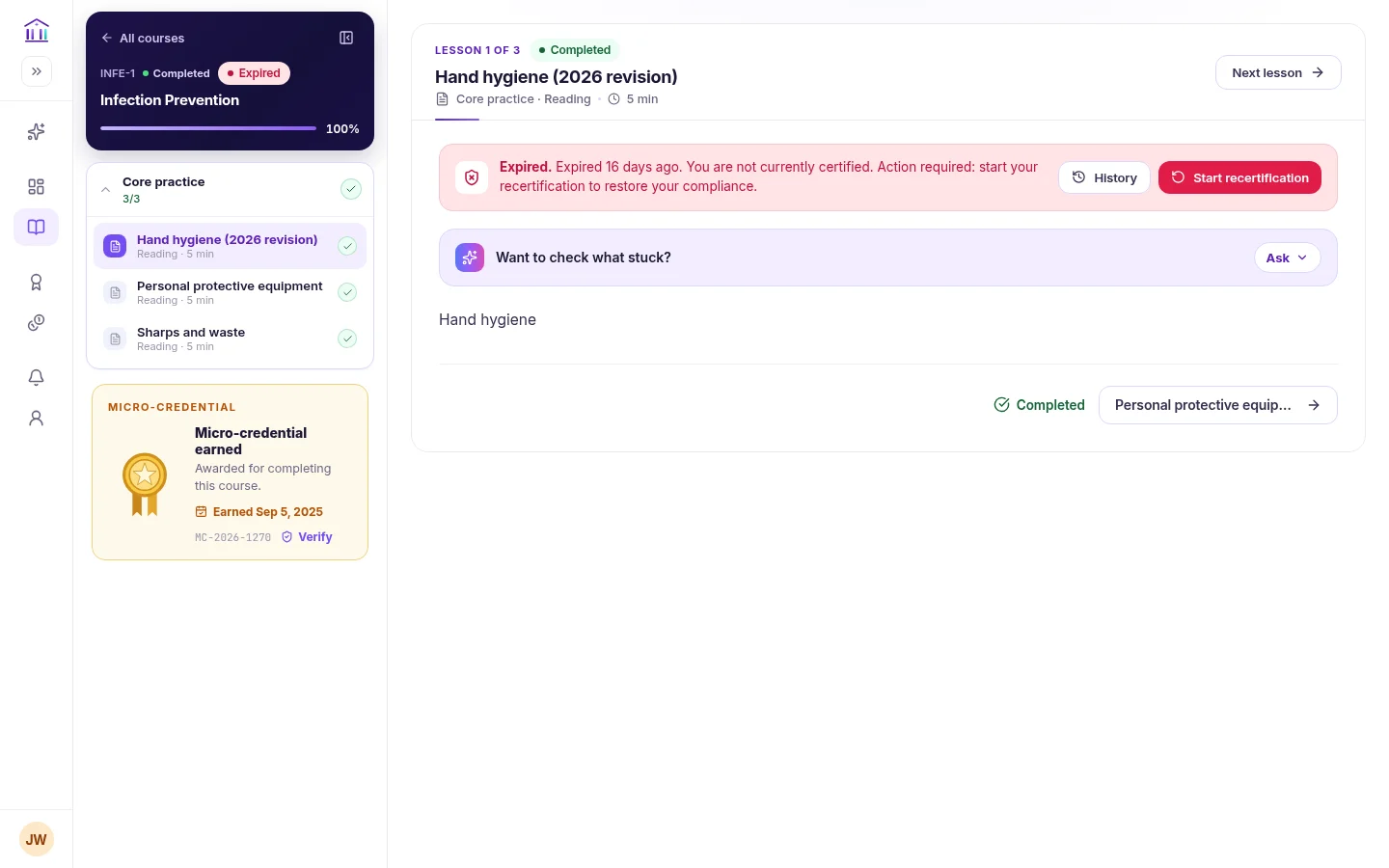
When renewal is open, the learner sees a banner on the course and in their certificate wallet, and starts the renewal from there. Their progress in the renewal course is reset, and their current certificate stays valid until the renewal is complete.
Completing the renewal issues a renewed certificate with a new certificate number. The previous cycle, including its certificate number, stays in the learner's history.
Related feature: Certificates
Handle exceptions Link to “Handle exceptions”
From an employee's compliance record, an administrator can require renewal, assign a renewal, clear a requirement, extend the expiry date, grant an exemption or revoke one. Each action asks for a reason and is recorded in the audit trail, so you can always see who changed what and why.
Related feature: Corporate learning & compliance
Monitor compliance Link to “Monitor compliance”
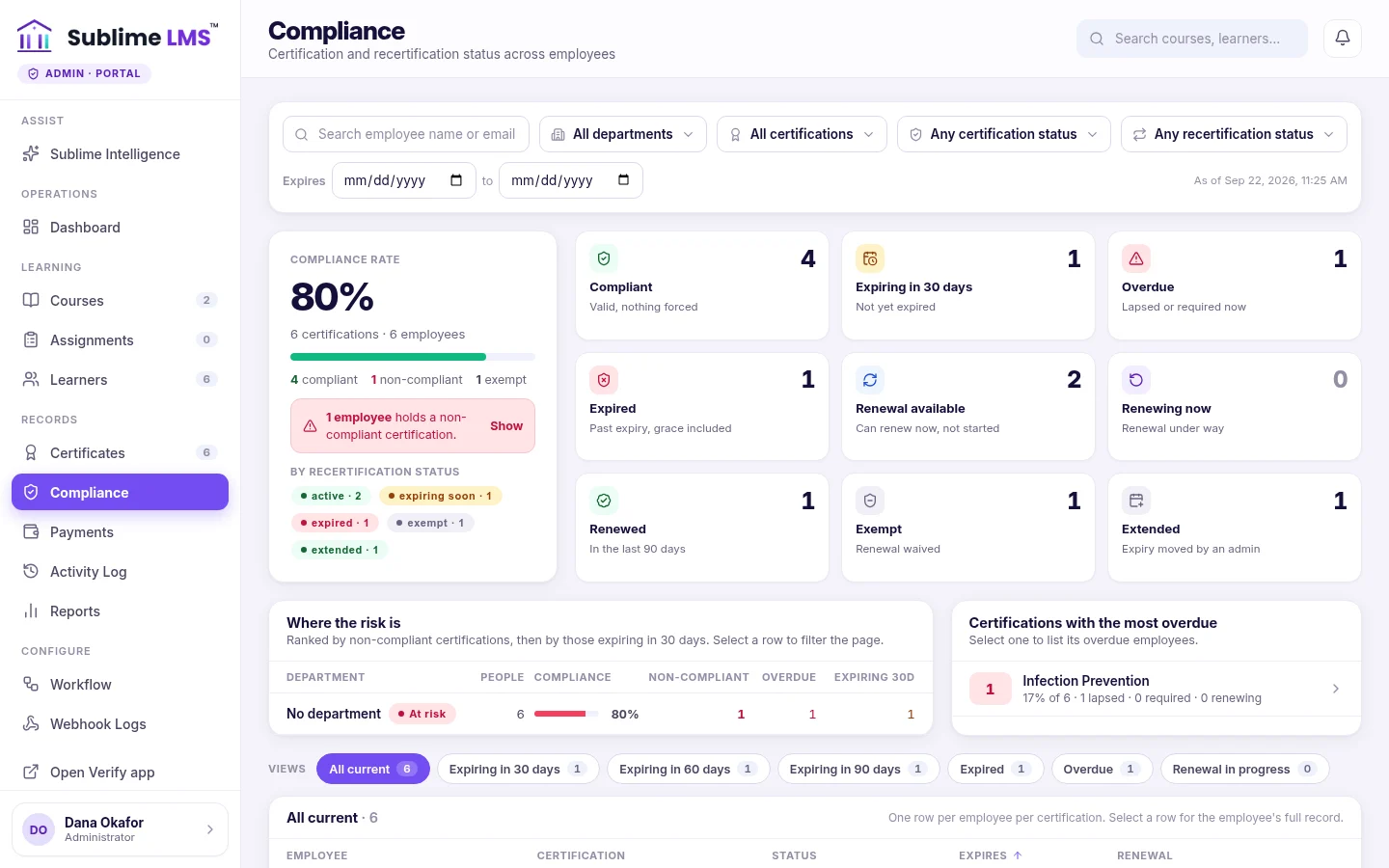
The Compliance dashboard shows the organization's compliance rate and how many certifications are compliant, expiring, overdue, expired, available for renewal, renewing, renewed, exempt and extended, and where the risk is concentrated.
Learners can download their certificates as PDFs from the certificate wallet, and share a public verification link so anyone can confirm a certificate is genuine.
Related feature: Corporate learning & compliance
Related guides
-
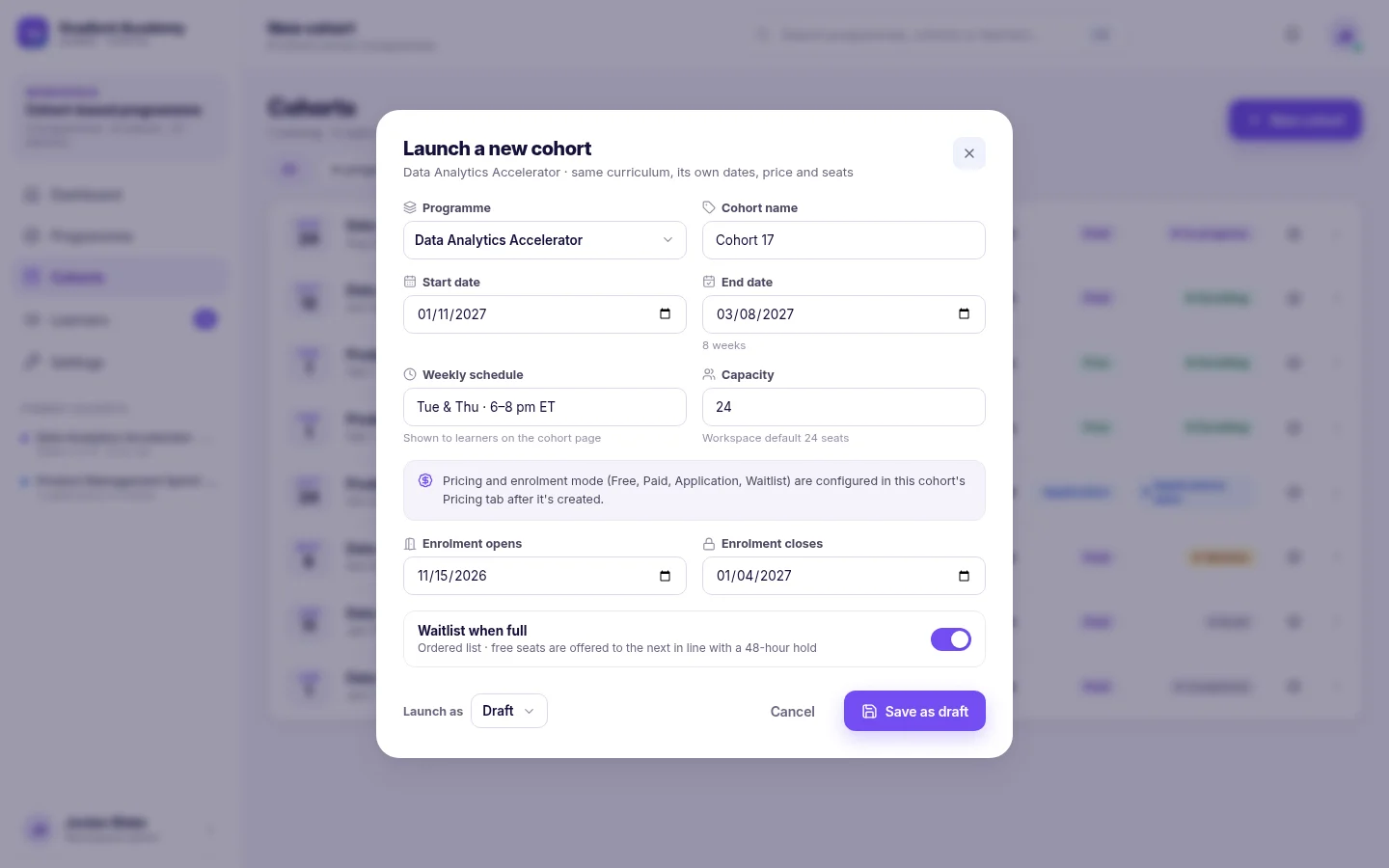 How to launch a cohort program
Take a program from finished content to a running cohort: create the cohort, choose how learners enroll, fill the seats, schedule live sessions and welcome the group.
5 min read
8 sections
How to launch a cohort program
Take a program from finished content to a running cohort: create the cohort, choose how learners enroll, fill the seats, schedule live sessions and welcome the group.
5 min read
8 sections
-
 Supporting learners who fall behind
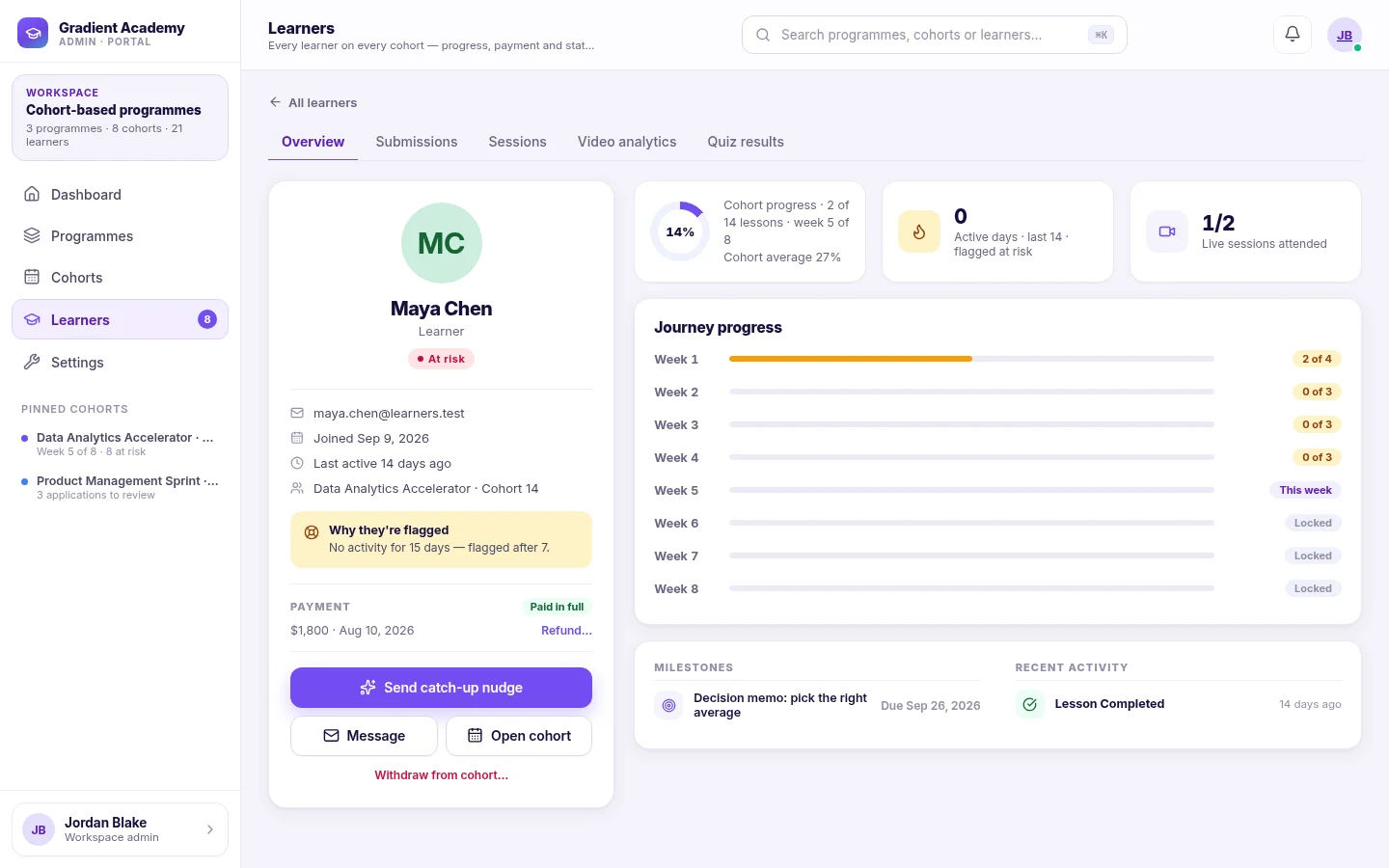
How Sublime LMS decides a learner is at risk, where to see why, who can reach out, and what the learner sees on their way back.
4 min read
7 sections
Supporting learners who fall behind
How Sublime LMS decides a learner is at risk, where to see why, who can reach out, and what the learner sees on their way back.
4 min read
7 sections
-
 Setting up, reviewing and grading assignments
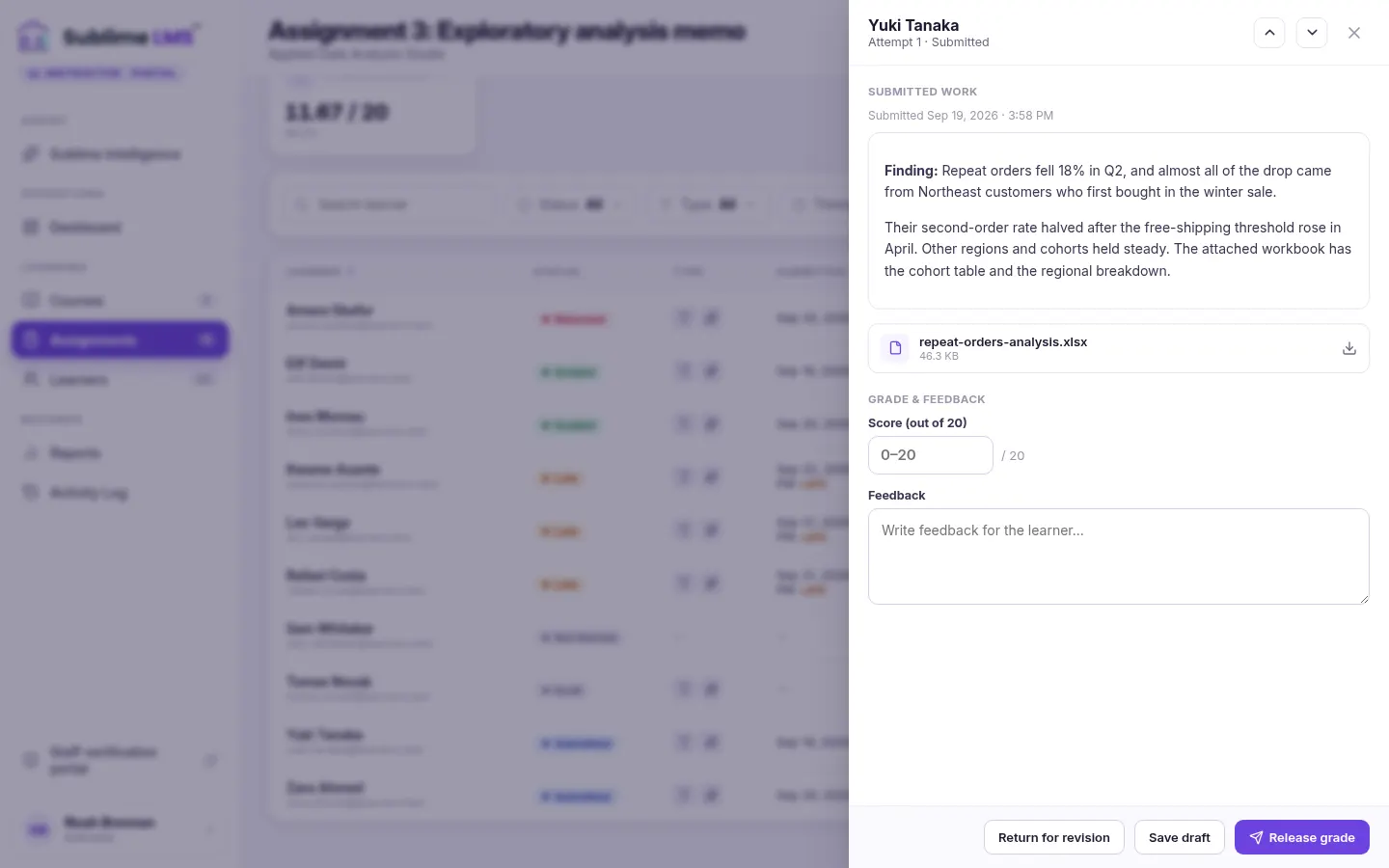
Configure an assignment learners can't misread, work through submissions quickly, and release grades and feedback in a way that keeps completion accurate.
4 min read
7 sections
Setting up, reviewing and grading assignments
Configure an assignment learners can't misread, work through submissions quickly, and release grades and feedback in a way that keeps completion accurate.
4 min read
7 sections