Supporting learners who fall behind
How Sublime LMS decides a learner is at risk, where to see why, who can reach out, and what the learner sees on their way back.
On this page
What this guide covers
- The two rules that mark a learner At risk, and why the status clears on its own
- Where administrators and instructors see who is flagged and why
- Who can send a catch-up nudge, and what the learner sees next
- How second attempts and missed live sessions fit into getting back on track
How the At risk status works Link to “How the At risk status works”
Every learner in a cohort has a status: Not started, On track, At risk or Completed. A learner is marked At risk when either of these is true:
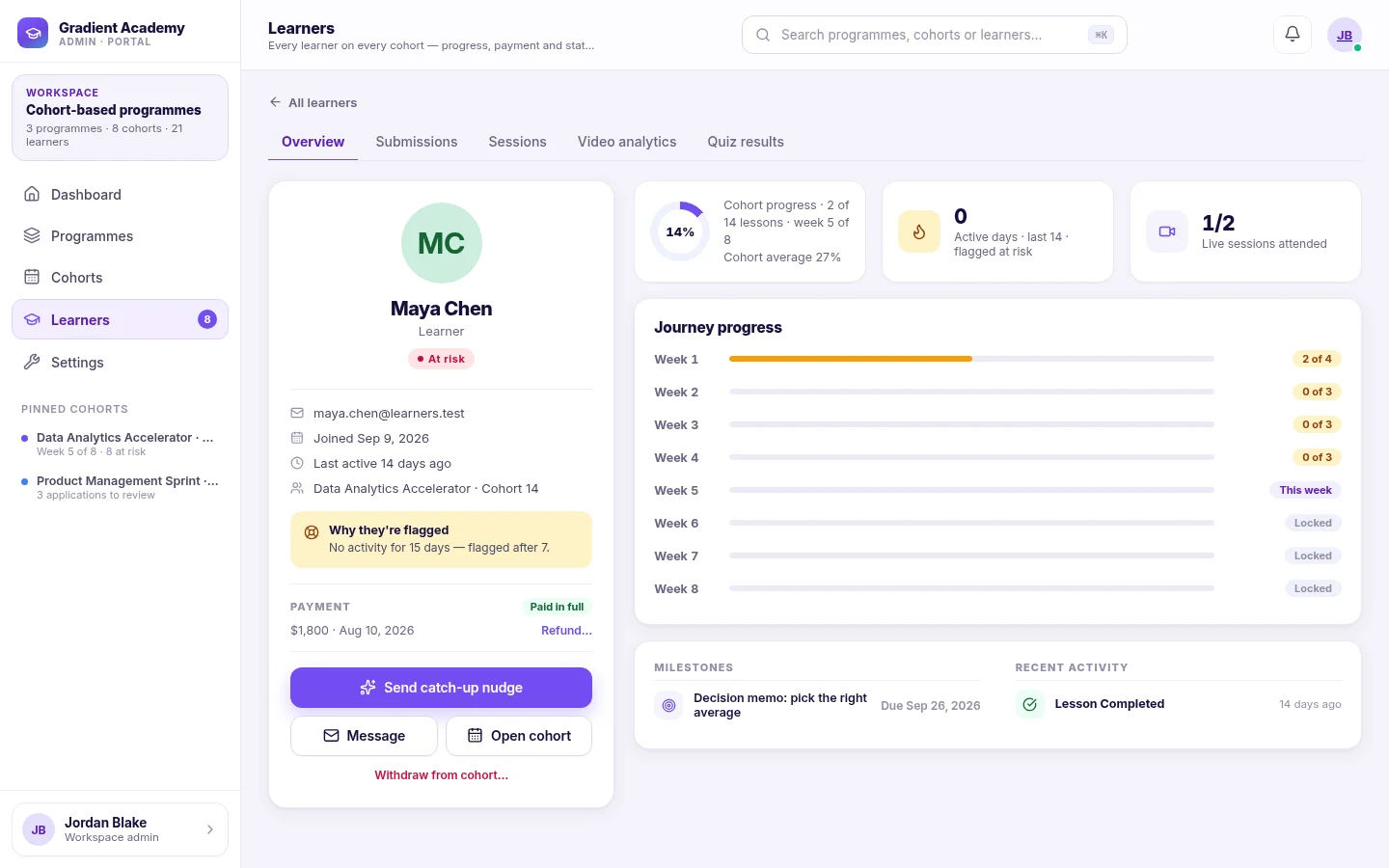
- They have had no activity for 7 days.
- Their progress is more than 25 points behind where the cohort's schedule says it should be by now.
The status is worked out from the learner's current activity each time it is shown. Nobody has to close it: once the learner is active again and their progress catches up, they go back to On track.
Related feature: Recovery workflows
See who is flagged, and why Link to “See who is flagged, and why”
In the cohort console, the roster shows how many learners are at risk, and you can filter it to At risk. Open a learner to see the reason in plain words, such as "No activity for 15 days — flagged after 7", along with their progress week by week, sessions attended and recent activity.
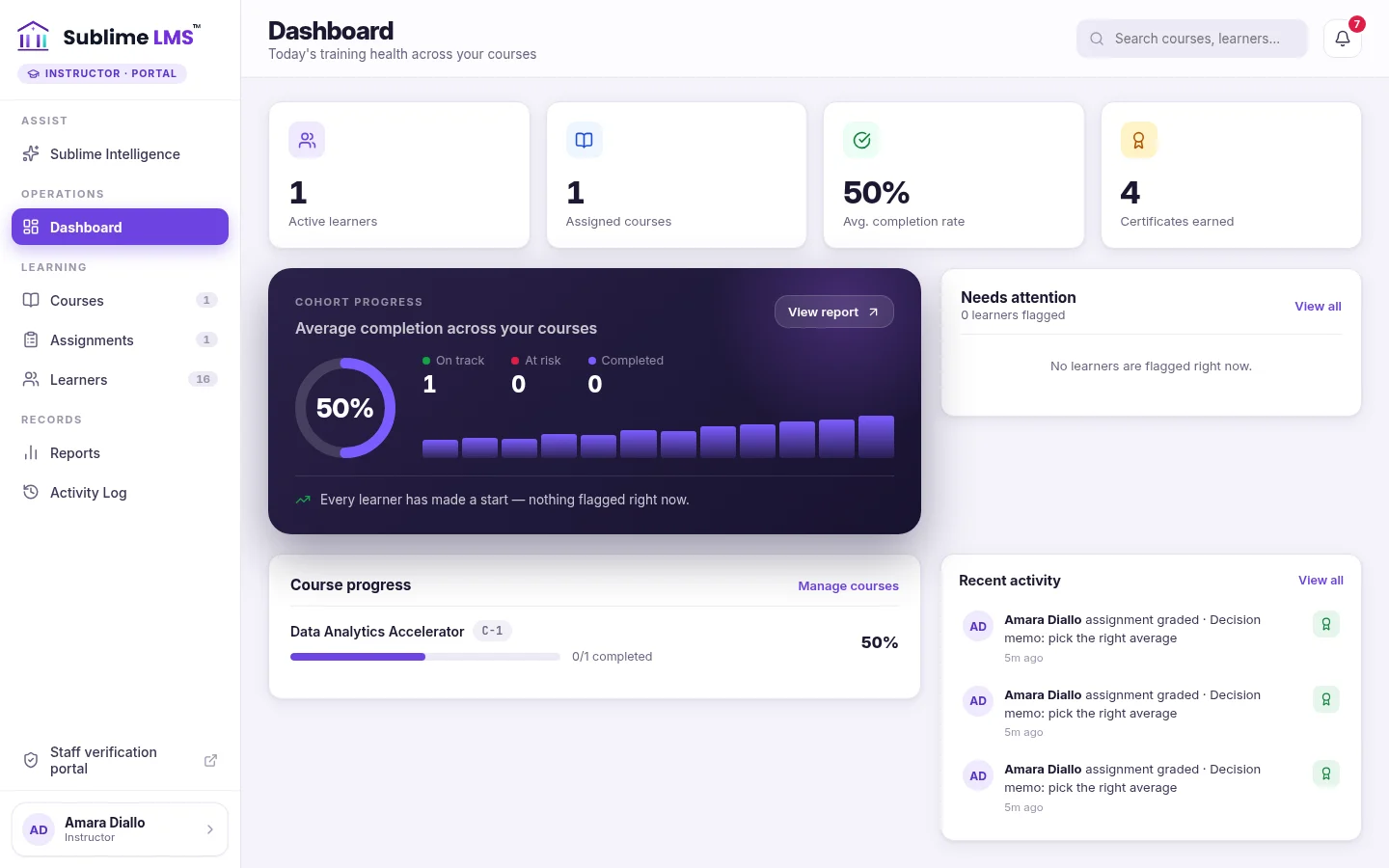
Instructors see the same statuses in their own workspace, for the courses they teach. Their learner list filters by status, and the Reports page has an Inactive learners export listing learners with no activity in 14 days or more.
Related feature: Progress tracking
Reach out Link to “Reach out”
Administrators can send a catch-up nudge by email, either to one learner from their profile or to every at-risk learner in a cohort at once. They can also message a learner or the whole cohort.
Instructors can't send nudges or messages. They follow up through their feedback on submitted work, and by passing names to an administrator. Agree on who does what before the cohort starts, so no flagged learner is left waiting.
Related feature: Recovery workflows
What the learner sees Link to “What the learner sees”
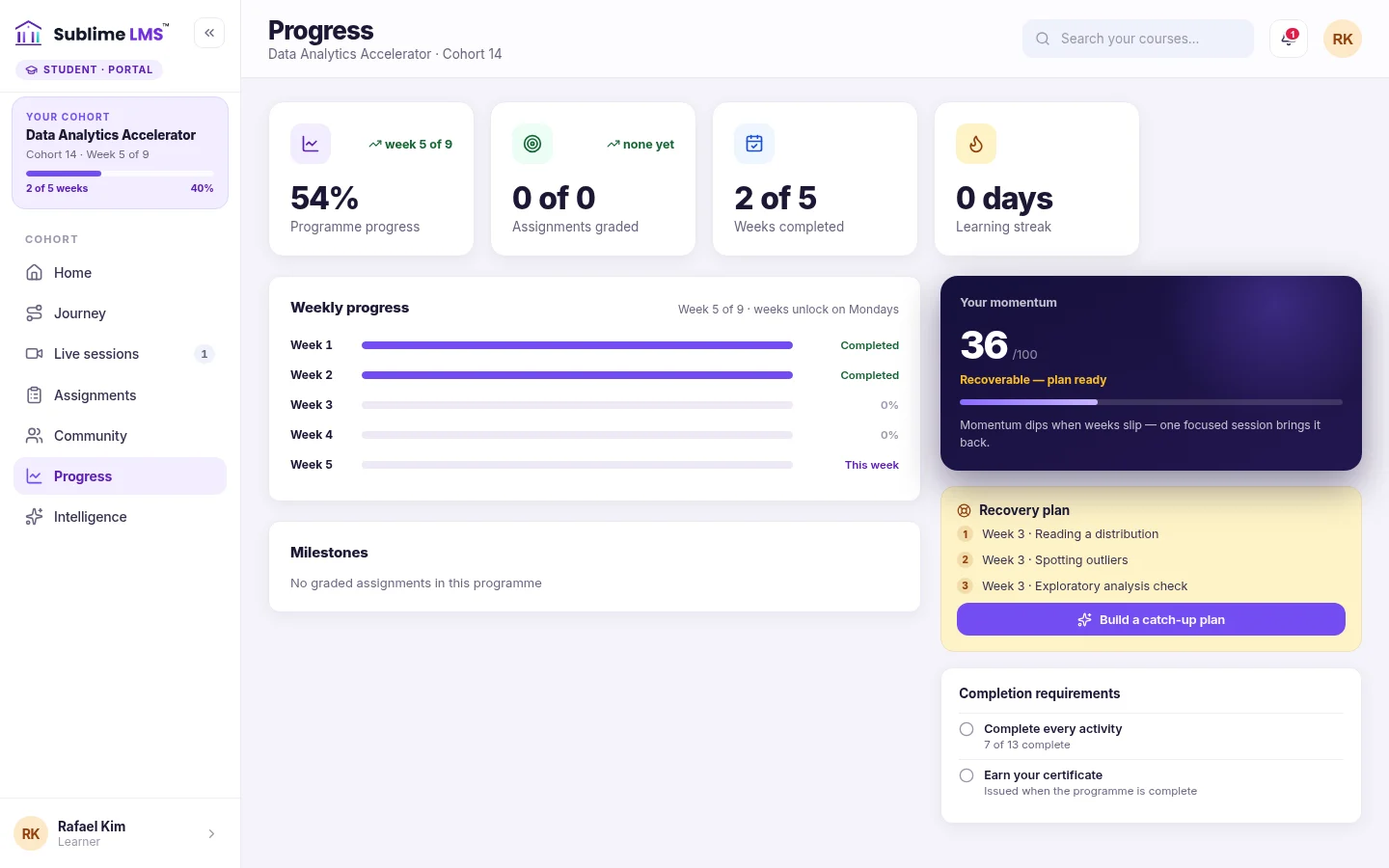
A learner who is behind is told so on their cohort home, in encouraging terms: they are a little behind, and it is recoverable this week. Their Progress page adds a recovery plan, a list of the activities still open from earlier weeks in course order, earliest week first.
Because the list is built from the learner's own open work, it stays accurate as they complete things. Nobody has to write a plan by hand.
Related feature: The learning experience
Give work a second attempt Link to “Give work a second attempt”
Getting back on track often means redoing something, not just catching up on it.
- Instructors can return an assignment for revision with feedback. The learner can then hand in a new attempt, and earlier attempts are kept.
- Quizzes can be retaken within the attempt limit when the course allows retakes. Learners see how many attempts they have left before they start.
Related feature: Assignments & feedback
Handle missed live sessions Link to “Handle missed live sessions”
When an administrator records attendance for a live session, anyone not marked present sees it as missed. The recording stays on their Live sessions page, and they can mark the session caught up once they've watched it.
Related feature: Cohort learning
A simple weekly routine Link to “A simple weekly routine”
Recovery works best as a habit, not an emergency. A routine that fits in a few minutes a week:
- At the start of the week, filter each live cohort's roster to At risk.
- Open each flagged learner and read why they were flagged. Inactivity and falling behind pace need different conversations.
- Send a catch-up nudge, individually where you have something specific to say, or to all at-risk learners in the cohort.
- Check returned assignments and missed sessions for the same learners.
- Look again the following week. Learners who are back on track will no longer be flagged.
Related guides
-
 Setting up, reviewing and grading assignments
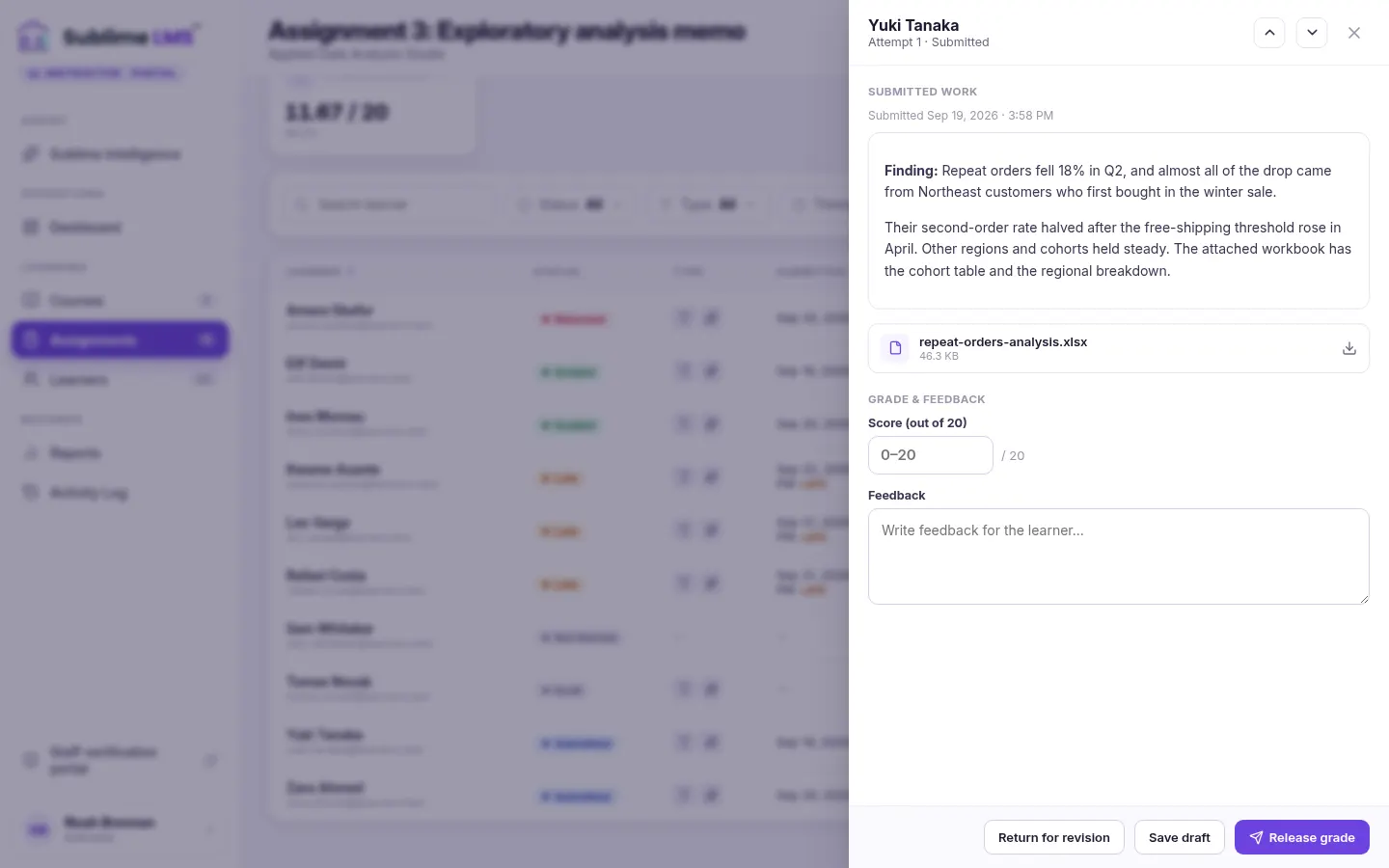
Configure an assignment learners can't misread, work through submissions quickly, and release grades and feedback in a way that keeps completion accurate.
4 min read
7 sections
Setting up, reviewing and grading assignments
Configure an assignment learners can't misread, work through submissions quickly, and release grades and feedback in a way that keeps completion accurate.
4 min read
7 sections
-
 How to launch a cohort program
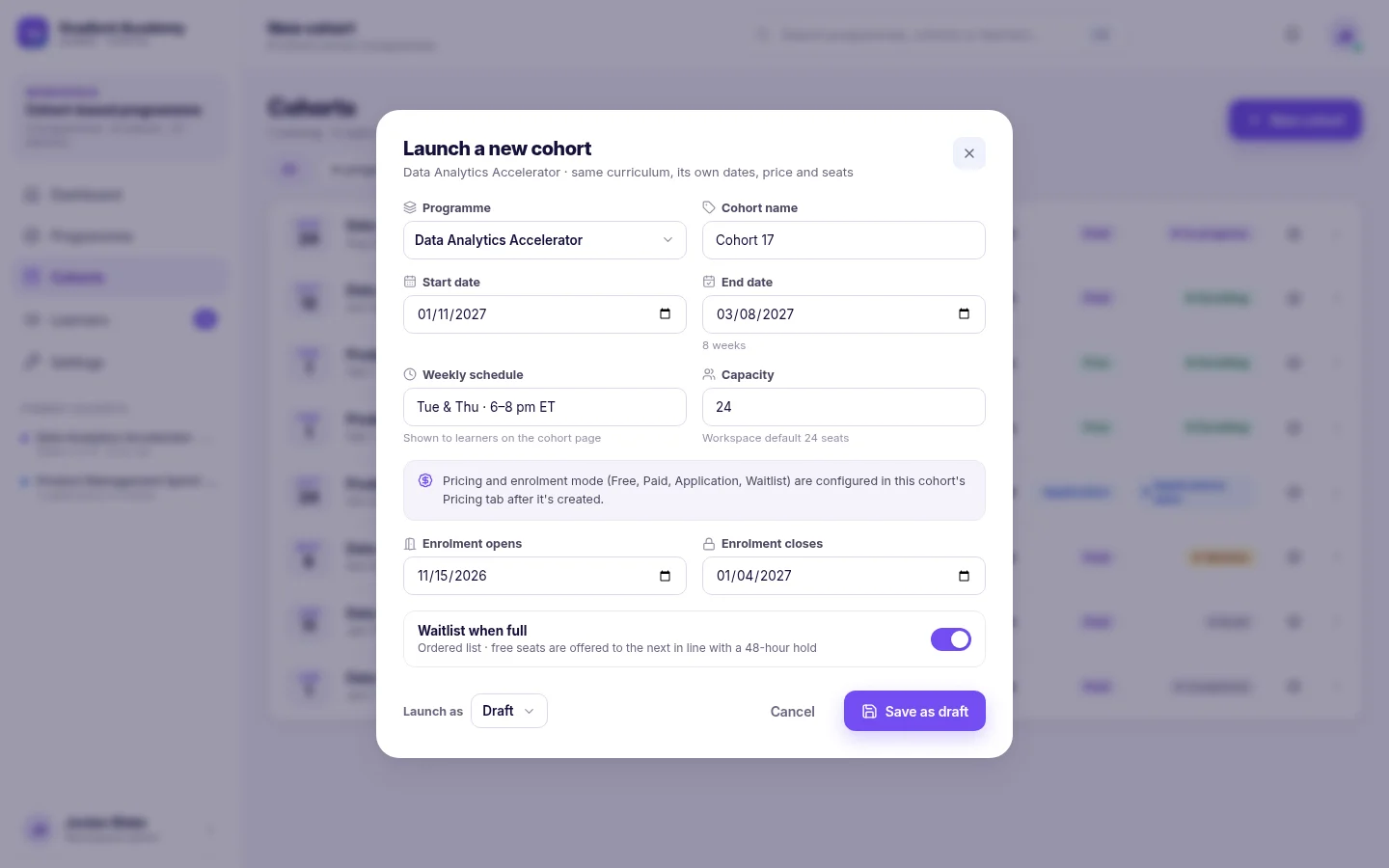
Take a program from finished content to a running cohort: create the cohort, choose how learners enroll, fill the seats, schedule live sessions and welcome the group.
5 min read
8 sections
How to launch a cohort program
Take a program from finished content to a running cohort: create the cohort, choose how learners enroll, fill the seats, schedule live sessions and welcome the group.
5 min read
8 sections
-
 A weekly routine for instructors
A practical tour of the instructor workspace, organized as a routine: what to check first, where to find each learner's story, and which reports to pull.
3 min read
5 sections
A weekly routine for instructors
A practical tour of the instructor workspace, organized as a routine: what to check first, where to find each learner's story, and which reports to pull.
3 min read
5 sections